How to Secure Microsoft Teams External Collaboration: A Step-by-Step IT Guide
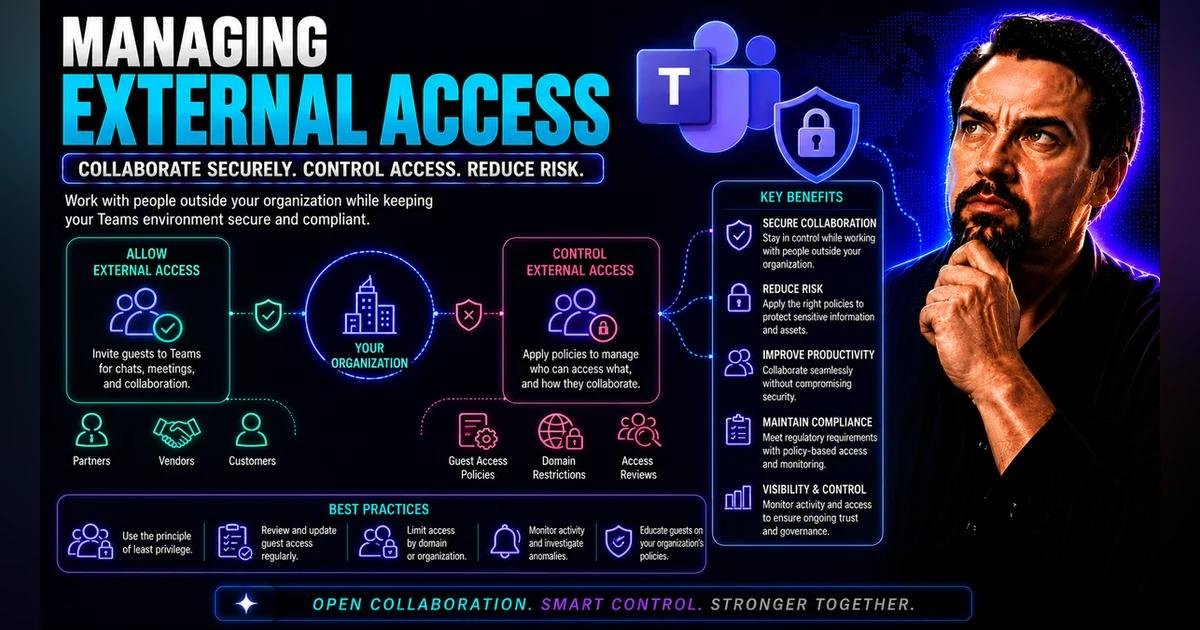
Microsoft Teams makes it easy for organizations to collaborate with external users, including customers, vendors, business partners, and contractors. However, allowing people outside your organization to communicate, access shared resources, and participate in teams can introduce security risks if the environment is not configured correctly.
In this guide, you will learn how to secure Microsoft Teams external collaboration, manage guest access, configure external access policies, protect sensitive information, and monitor collaboration activity using Microsoft 365 security controls.
Whether you are a Microsoft 365 administrator, IT professional, or security engineer, these steps will help you build a more secure collaboration environment.
Why Secure Microsoft Teams External Collaboration Security Important?
External collaboration improves productivity, but poorly managed access can expose organizational information to unauthorized users.
Common risks include:
- Unauthorized external users accessing Teams conversations or shared files.
- Former contractors or partners retaining access after their engagement ends.
- Sensitive documents being shared with unintended recipients.
- Weak identity verification and authentication controls.
- Guest accounts remaining active without regular reviews.
- Inadequate monitoring of external collaboration activity.
A secure Microsoft Teams environment requires a combination of identity management, access restrictions, data protection, and continuous monitoring.
Step 1: Understand External Access vs. Guest Access
Before changing security settings, understand the difference between external access and guest access in Microsoft Teams.
External access
External access allows users in other organizations to communicate with your users through supported Teams features, such as chat and meetings, subject to your organization’s policies.
It does not, by itself, provide guest membership in your teams.
Guest access
Guest access allows people outside your organization to be added to a team and access resources permitted to them, such as team conversations, channels, and shared files.
Guest access involves Microsoft Entra B2B collaboration and related Microsoft 365 controls.
Security tip: Use the least-privilege approach. Enable only the collaboration capabilities that your organization actually needs.
Step 2: Configure Microsoft Teams External Access
Start by reviewing which external organizations and domains your users can communicate with.
- Sign in to the Microsoft Teams admin center.
- Navigate to Users > External access. The exact navigation may vary as the admin center evolves.
- Review whether external access is enabled.
- Examine the allowed and blocked domains configuration.
- Restrict communication to approved domains if your business requirements support this approach.
- Review any exceptions and document the reason for each one.
- Save your changes and test communication with approved and unapproved external domains.
A domain allowlist can help limit external communication to trusted organizations. However, domain restrictions should be aligned with your collaboration requirements and tested before enforcement.
Step 3: Secure Guest Access Settings
Guest access should be enabled only when external users need access to team-level resources.
To review guest access:
- Open the Microsoft Teams admin center.
- Navigate to Users > Guest access.
- Review the permissions available to guest users.
- Disable capabilities that are not required for business collaboration.
- Review messaging, calling, meeting, and other available guest permissions as applicable.
- Save the configuration and validate the experience with a test guest account.
Also review Microsoft Entra external collaboration settings and the Microsoft 365 Groups settings that govern guest membership.
Remember that restricting Teams guest access alone does not automatically secure every sharing path across Microsoft 365. SharePoint, OneDrive, Microsoft Entra ID, and other connected services may have separate controls.
Step 4: Configure Teams Policies and Permissions
Teams policies determine what users can do and which collaboration capabilities are available to them.
Review the policies assigned to employees and any relevant guest or external-user settings.
Important areas to assess include:
- Meeting access and anonymous meeting participation.
- Chat and communication permissions.
- App availability and third-party integrations.
- File-sharing permissions.
- Team creation and membership management.
- Channel access and collaboration settings.
Use role-based administration and assign administrative permissions only to authorized personnel.
Best practice: Avoid applying broad permissions to every user when a more restrictive policy can meet the business requirement.
Step 5: Strengthen Identity and Authentication Security
Microsoft Teams collaboration security depends heavily on identity protection.
Use Microsoft Entra ID to implement appropriate controls for employees, guests, and external collaboration scenarios.
Recommended measures include:
- Enable multifactor authentication (MFA) for users and guests where applicable.
- Use Conditional Access policies to enforce appropriate access requirements.
- Apply sign-in risk and user risk policies where your licensing and security configuration support them.
- Review cross-tenant access settings for inbound and outbound collaboration.
- Remove unnecessary accounts and revoke access when users no longer need it.
- Use privileged identity controls to protect administrator accounts.
Test Conditional Access policies carefully, preferably in report-only mode or with a controlled pilot before enforcing them broadly. Ensure emergency access accounts are handled according to your organization’s security procedures.
Step 6: Protect Files Shared Through Teams
Files shared in Teams are generally stored in SharePoint or OneDrive, depending on how they are shared. As a result, file security must be managed at the storage and sharing layers as well as within Teams.
Follow these practices:
- Review SharePoint and OneDrive external sharing settings.
- Restrict anonymous or “Anyone” links where they are not required.
- Prefer authenticated sharing with specific people when appropriate.
- Apply expiration dates to sharing links where supported and suitable.
- Review access permissions for sensitive sites and documents.
- Use sensitivity labels and data loss prevention (DLP) policies when supported by your Microsoft 365 licensing.
- Audit externally shared files and remove unnecessary access.
Keep in mind that changing a tenant-wide sharing setting can affect existing workflows. Test proposed restrictions and communicate changes to affected teams.
Step 7: Monitor External Collaboration Activity
Security settings need ongoing review to remain effective.
Use the Microsoft Purview portal and Microsoft 365 audit capabilities, where available, to investigate relevant collaboration events and sharing activity.
Monitor for:
- Guest invitations and changes to guest membership.
- Unusual sign-in activity.
- Unexpected file-sharing events.
- Changes to security policies and administrative settings.
- Suspicious access patterns involving sensitive information.
Use Microsoft Entra sign-in logs and audit logs to investigate identity-related events. Depending on your licensing and configuration, Microsoft Defender and Microsoft Sentinel may provide additional detection, investigation, and alerting capabilities.
Create an incident response process so that suspicious activity can be investigated and access can be restricted promptly.
Step 8: Perform Regular Guest Access Reviews
External collaboration access should not remain active indefinitely without a business reason.
Establish a regular review process:
- Identify guest accounts and their associated teams or groups.
- Confirm that each guest still has a valid business purpose.
- Ask team owners to verify membership and access requirements.
- Remove guests who no longer require access.
- Review inactive accounts and stale invitations.
- Record review outcomes for auditing and compliance.
Microsoft Entra ID Governance access reviews may help automate this process when the required licensing is available. Otherwise, use a documented manual review process.
Step 9: Create an External Collaboration Security Checklist
Use this checklist to assess your Microsoft Teams environment.
- Review allowed and blocked external domains.
- Validate guest access permissions.
- Configure MFA and appropriate Conditional Access policies.
- Review cross-tenant access settings.
- Audit SharePoint and OneDrive external sharing.
- Apply appropriate sensitivity labels and DLP controls.
- Review Teams policies and administrative permissions.
- Monitor audit logs and suspicious sign-in activity.
- Perform regular guest account and membership reviews.
- Document security exceptions and incident response procedures.
Repeat these checks regularly and whenever your organization’s collaboration requirements change.
Common Mistakes to Avoid
Treating external access and guest access as the same thing
These capabilities serve different purposes and require separate policy reviews.
Relying only on Teams settings
Files shared through Teams may be governed by SharePoint and OneDrive permissions. Review the full Microsoft 365 collaboration environment.
Leaving guest accounts unmanaged
Guest access should have a clear business owner, a defined purpose, and a review or removal process.
Applying restrictive policies without testing
Overly restrictive settings can disrupt business workflows. Use pilot testing and change management before broad enforcement.
Ignoring audit and identity logs
Preventive controls are important, but monitoring helps detect misconfigurations and suspicious activity that preventive controls may not stop.
Recommended Articles
Conclusion
Securing Microsoft Teams external collaboration requires more than enabling or disabling a single setting. IT administrators should combine external access restrictions, controlled guest permissions, strong authentication, secure file sharing, policy management, and continuous monitoring.
By following this step-by-step guide, your organization can reduce unnecessary exposure while maintaining productive collaboration with trusted external partners.
Review your Microsoft Teams and Microsoft 365 security settings regularly, document exceptions, and adapt your controls as business requirements and Microsoft security capabilities evolve.
Explore more Microsoft 365 security and administration guides on PcMac to strengthen your organization’s collaboration and identity security.