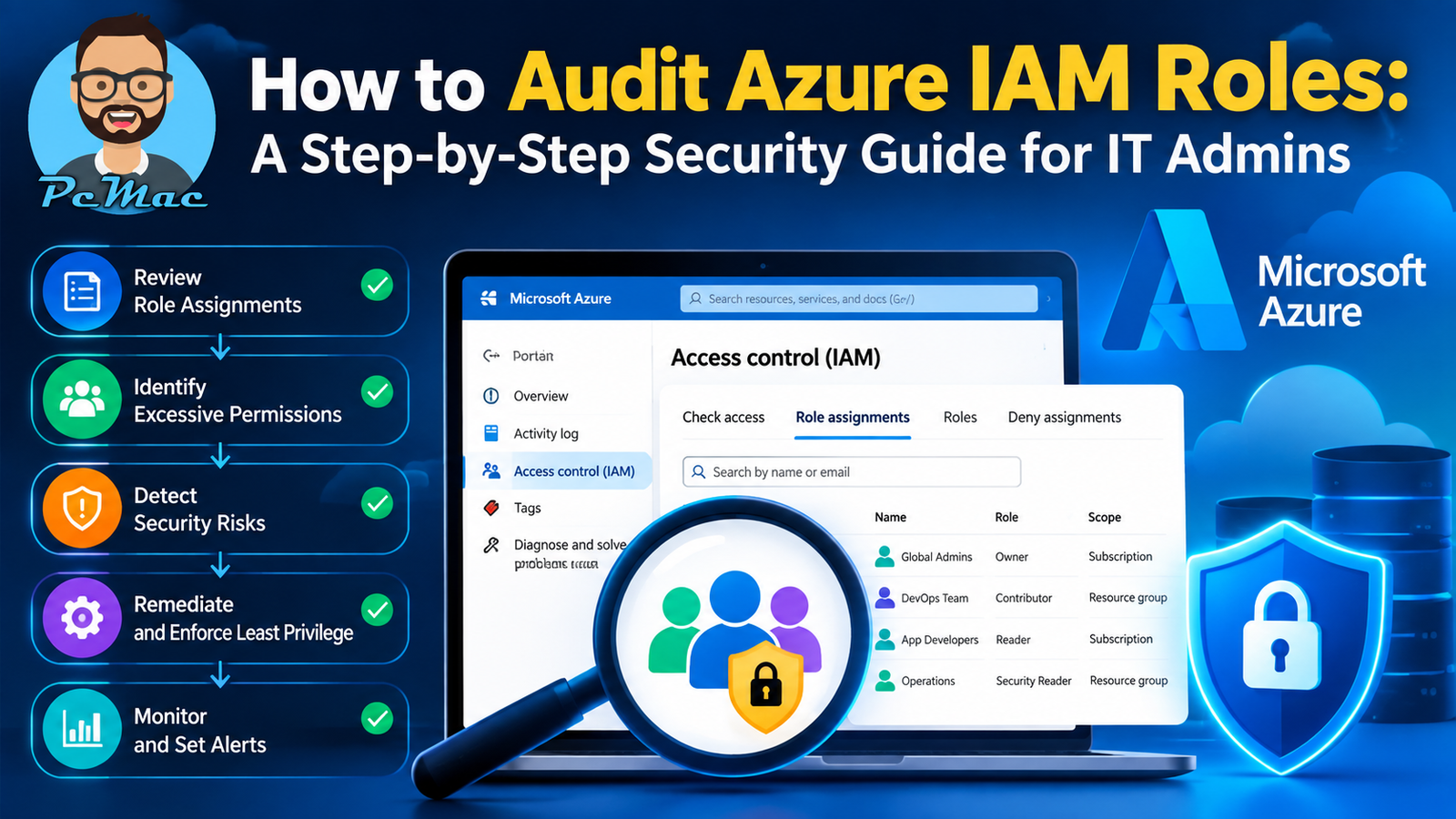
Securing a cloud environment is an ongoing challenge for IT administrators, and managing access permissions is often the hardest part. When user privileges expand unchecked over time, your organization faces significant security vulnerabilities. Learning how to audit Azure IAM roles is a critical administrative task that helps you enforce the principle of least privilege, maintain compliance, and protect your cloud infrastructure from unauthorized access.
Why Regular Azure IAM Audits Matter
Azure Identity and Access Management (IAM), powered by Microsoft Entra ID (formerly Azure Active Directory) and Azure Role-Based Access Control (RBAC), dictates who can access your resources and what they can do with them. Without routine oversight, environments naturally accumulate “permission creep.” Users change departments, vendors are granted temporary access that never expires, and service principals retain high-level privileges long after a project ends.
Regularly auditing your Azure IAM roles ensures that your security posture remains resilient. It allows you to:
- Identify and remove stale or orphaned accounts.
- Detect excessive permissions assigned to standard user accounts.
- Comply with regulatory frameworks like SOC 2, HIPAA, and GDPR.
- Mitigate the impact of potential credential theft or insider threats.
Preparing for Your Azure Role Audit
Before diving into the technical steps, you need to establish the right permissions and scope for your audit. Performing a thorough review requires specific administrative rights within your Azure tenant.
Required Permissions
To view and modify role assignments across your entire subscription or management group, your account must hold specific built-in roles. Typically, you will need:
- Global Administrator or Privileged Role Administrator for Microsoft Entra ID assignments.
- Owner or User Access Administrator for Azure subscription and resource-level RBAC assignments.
Defining the Scope
Azure RBAC operates on a scope-based hierarchy consisting of management groups, subscriptions, resource groups, and individual resources. Deciding whether you are auditing at the tenant level or targeting a specific high-security subscription will streamline the process and help you prioritize critical assets first.
Step-by-Step Guide: How to Audit Azure IAM Roles
You can audit Azure access controls using several methods, ranging from the native Azure Portal to automated scripts. Follow these practical steps to perform a comprehensive manual audit using the Azure Portal.
- Log in to the Azure Portal using an account with administrative privileges.
- Navigate to Microsoft Entra ID to review global identity assignments, user accounts, and administrative roles.
- Select Roles and administrators from the left-hand menu to inspect who holds privileged roles such as Global Administrator, Billing Administrator, or User Administrator.
- Export the list of privileged users by clicking Download assignments to maintain an offline record for compliance tracking.
- Next, navigate to Subscriptions from the main Azure dashboard to audit resource-level access.
- Select your target subscription, click on Access control (IAM), and then select the Role assignments tab.
- Review the list of assigned roles, paying close attention to broad roles like Owner and Contributor assigned to individual user accounts rather than security groups.
Leveraging Advanced Tools for Automated Auditing
While the Azure Portal is great for spot-checks, large enterprise environments demand automated solutions. Utilizing native tools saves time and reduces human error during routine security reviews.
Microsoft Entra Privileged Identity Management (PIM)
If your organization utilizes Microsoft Entra ID PIM, auditing becomes significantly easier. PIM enables just-in-time access, meaning users only receive elevated permissions when they need them, and those permissions automatically expire. You can use the PIM audit history dashboard to review past activation requests, identify users who frequently request high-level roles, and spot anomalous behavior.
Azure PowerShell and Graph API
For administrators who prefer code-based management, Azure PowerShell and Microsoft Graph PowerShell SDK offer robust commands to script automated audits. Running scripts to pull all role assignments and export them into a CSV file allows you to feed data into security information and event management (SIEM) systems for long-term analysis.
“Implementing just-in-time access through Privileged Identity Management drastically reduces your standing privileged attack surface.”
Remediating Excessive and Risky Permissions
An audit is only valuable if you act on the findings. Once you have identified misconfigurations or overly permissive assignments, remediation should follow a structured cleanup process.
- Revoke unused access: Immediately remove accounts that no longer require access to the subscription or tenant.
- Transition to groups: Avoid assigning direct permissions to individual users. Instead, assign Azure IAM roles to security groups managed via Microsoft Entra ID.
- Enforce MFA: Ensure that all accounts holding administrative or privileged roles are strictly enforced with Multi-Factor Authentication.
- Schedule recurring reviews: Set up automated access reviews within Azure to prompt resource owners every 30, 60, or 90 days to recertify user access.
Conclusion
Mastering how to audit Azure IAM roles is an essential competency for any modern IT administrator. By moving away from static, permanent permissions and embracing continuous oversight, automated tooling, and the principle of least privilege, you can dramatically strengthen your organization’s cloud security. Make IAM auditing a routine part of your operational calendar to keep your Azure environment secure, compliant, and resilient against evolving cyber threats.