A lightweight Mac utility built by PcMac to help you manage browser data, find large files, remove unused apps, and monitor system activity.
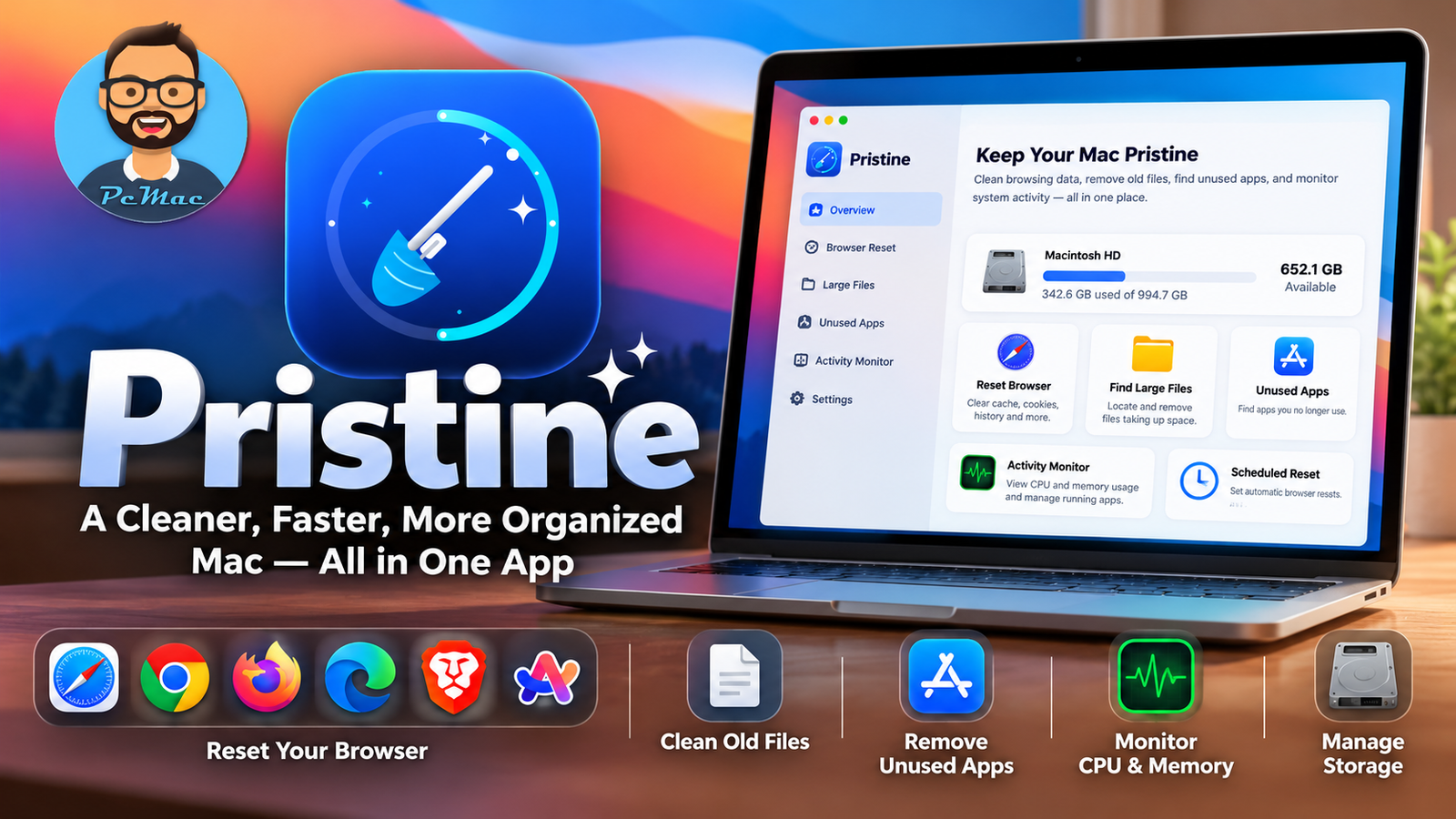
Is your browser cluttered with old cookies, cached data, and browsing history? Is your Mac running low on storage because of large files and applications you no longer use?
Keeping your Mac organized shouldn’t require several different utilities.
That’s why I built Pristine — a macOS utility that brings browser resetting, large-file cleanup, unused-app discovery, and system activity monitoring together in one application.
Designed for macOS, Pristine gives you a straightforward way to manage browser data, review files taking up space, and keep an eye on your Mac’s resources.
Ready to try it?
Get Pristine here:
What Is Pristine for Mac?
Pristine is a Mac utility designed to help you manage browser data and keep your system organized.
Whether you want to reset a browser, identify files consuming valuable storage, find applications you no longer use, or check which apps are using CPU and memory, Pristine brings these tasks into one place.
Instead of switching between multiple tools, you can use a single application for several everyday Mac maintenance tasks.
Pristine supports macOS Sonoma (macOS 14) and newer, on both Apple silicon and Intel Macs.
Key Features of Pristine
1. Reset Your Browser with More Control
<escape>One of Pristine’s core features is its browser reset functionality.</escape>
Over time, browsers accumulate cookies, cache files, browsing history, and site data. Sometimes you want to clear this information to troubleshoot a website, start a fresh browsing session, or remove accumulated browser clutter.
Pristine supports browser data management for:
- Safari
- Google Chrome
- Microsoft Edge
- Brave
- Arc
- Mozilla Firefox
You can choose which browser data to reset, including history, cookies, cache, site data, and open tabs.
This is especially useful when troubleshooting browser issues or wanting a cleaner browsing experience without manually navigating through multiple settings screens.
2. Back Up Browser Data Before Resetting
Resetting a browser can affect your everyday browsing experience, especially if you rely on saved settings and extensions.
Pristine includes a backup and restore workflow for supported browser information, including bookmarks, settings, logins, and extensions.
This gives you an opportunity to preserve important browser information before performing a reset.
Tip: Review the backup results before proceeding. Browser sync services may also restore previously synchronized data after a reset.
3. Find Large Files Taking Up Storage
Your Mac can accumulate large files that you no longer need. Old archives, installers, exported files, and other forgotten items can occupy valuable storage space.
Pristine helps you scan your Mac for large files, review the results, and move selected files to the Trash.
Instead of deleting files blindly, you can inspect what is taking up space and decide what you want to remove.
This can be particularly helpful when your Mac’s storage is getting full and you need to identify the biggest space consumers.
4. Discover Applications You No Longer Use
Have applications installed that you haven’t opened in months?
Pristine can identify applications that haven’t been opened in 3, 6, or 12 months and show their sizes.
This helps you identify potential candidates for removal and make more informed decisions about which applications you still need.
Finding unused apps is a useful first step toward reclaiming storage and keeping your Applications folder organized.
5. Monitor CPU and Memory Usage
Sometimes the problem isn’t storage. A resource-intensive application may be consuming CPU or memory and affecting your workflow.
Pristine includes an Activity Monitor feature that displays live CPU and memory usage grouped by application, with options to quit or force quit apps.
This helps you identify which applications are consuming resources without having to open a separate monitoring utility.
Always save your work before quitting an application, particularly when force quitting an unresponsive app.
6. Keep an Eye on Available Disk Space
Knowing how much storage remains on your Mac makes it easier to identify when cleanup might be necessary.
Pristine keeps used and available disk space visible so you can monitor your storage situation while using the application.
7. Quick Actions from the Menu Bar
Pristine also offers menu bar access for convenient actions without needing to navigate through the main application every time.
It supports optional scheduled browser resets that can run in the background, giving you another way to manage browser data as part of your routine.
Review your reset settings carefully before enabling a schedule, particularly if you rely on browser sessions or stored website data.
Why Choose Pristine?
Pristine is built around a simple idea: everyday Mac maintenance should be accessible without requiring several separate utilities.
Here is what makes it useful:
- Multiple tools in one application: Browser reset, file cleanup, unused-app discovery, and activity monitoring.
- Browser flexibility: Support for six popular browsers.
- More deliberate cleanup: Review large files before moving selected items to the Trash.
- Browser backup options: Preserve supported information before resetting.
- Resource visibility: Check CPU usage, memory usage, and disk space.
- Convenient access: Use menu bar actions and optional scheduled browser resets.
- Local operation: Pristine runs on your Mac without requiring an account or sending its own analytics.
Pristine is intended to make these maintenance tasks easier to manage while keeping the user involved in important cleanup decisions.
Is Pristine Safe to Use?
When cleaning a Mac, convenience should never come at the expense of your data.
Pristine moves browser-reset files to the Trash rather than immediately deleting them permanently. Large-file cleanup also lets you review items before moving them to the Trash.
Emptying the Trash is permanent, so double-check its contents before proceeding.
To access and reset protected browser data, macOS requires you to grant Pristine Full Disk Access through System Settings → Privacy & Security → Full Disk Access.
As with any maintenance tool, back up important information before performing significant cleanup. Also remember that browser synchronization may restore previously synced data.
Pristine runs locally, requires no account, and does not make its own network requests according to the project’s documentation.
How to Install Pristine on Your Mac
Getting started is straightforward.
Step 1: Open Terminal
Open Terminal on your Mac. You can find it using Spotlight Search.
Step 2: Run the Installation Command
Copy and run the following command:
curl -fsSL https://raw.githubusercontent.com/PcMac24x7/pristine/main/install.sh | bashThe installer downloads the latest release, checks its checksum, and installs Pristine into your Applications folder.
Security tip: Before executing a remote script, you can inspect the installation script directly at:
https://github.com/PcMac24x7/pristine/blob/main/install.sh
Step 3: Open Pristine
After installation, run:
open -a "Pristine"Alternatively, open Pristine from your Applications folder.
Step 4: Grant Browser Access
If you want to reset protected browser data, open:
System Settings → Privacy & Security → Full Disk Access
Enable Pristine, then quit and reopen the app so the permission takes effect.
Once configured, you can explore the available browser reset, file cleanup, unused-app, and monitoring features.
Who Should Use Pristine?
Pristine may be useful for:
- Mac users who regularly clear browser data.
- People troubleshooting website or browser issues.
- Users who need to identify large files taking up storage.
- Anyone reviewing applications they no longer use.
- Developers and professionals who want convenient CPU and memory monitoring.
- Users who prefer a single utility for several everyday maintenance tasks.
If any of these sound familiar, Pristine is worth exploring.
Download Pristine for Mac
Pristine is available as an open-source project from PcMac24x7.
Visit the official GitHub repository to install the software, read the documentation, explore the source code, and follow future updates.
Download and installation:
https://github.com/PcMac24x7/pristine
Quick installation command:
curl -fsSL https://raw.githubusercontent.com/PcMac24x7/pristine/main/install.sh | bashFinal Thoughts
A well-organized Mac starts with having the right tools to understand and manage what’s happening on your system.
With Pristine, I wanted to bring several useful tasks together: resetting browser data, reviewing large files, identifying unused applications, monitoring CPU and memory usage, and keeping track of available storage.
Rather than jumping between different utilities, you can access these features from one Mac application.
If you try Pristine, I’d love to hear your feedback and learn how you’re using it.
Give Pristine a try and help me improve it.
Project: https://github.com/PcMac24x7/pristine
Pristine is an independent project by PcMac24x7 and is not affiliated with or endorsed by Apple or the browser vendors mentioned above.