Securing your company data is more critical than ever, especially for small businesses operating in hybrid or remote environments. Passwords alone are no longer enough to stop modern cyber threats like phishing and credential stuffing. Fortunately, implementing an extra layer of defense is straightforward once you know how to configure Azure Multi-Factor Authentication (MFA) for small business environments.
Understanding Azure Multi-Factor Authentication
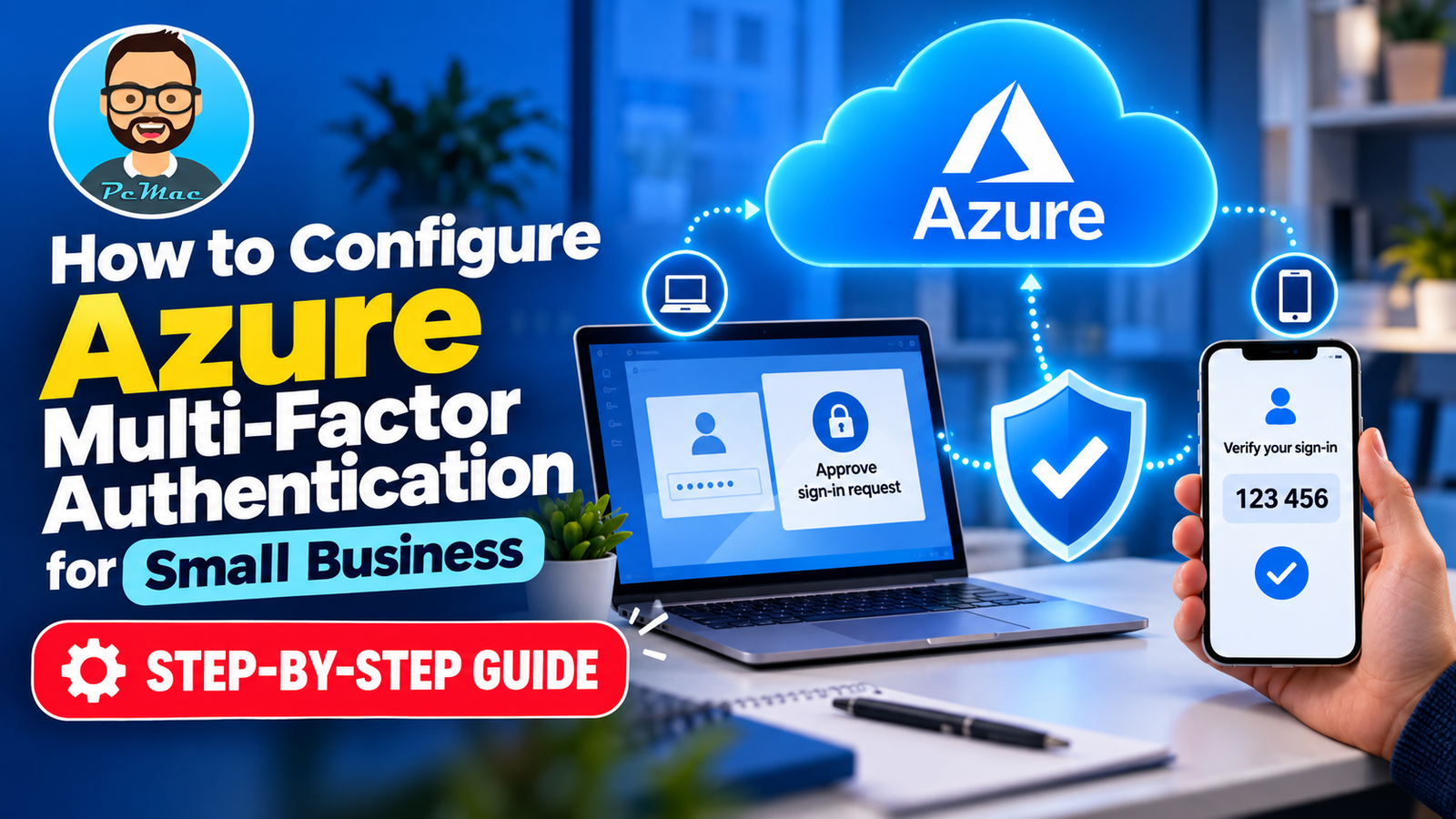
Azure Multi-Factor Authentication is a cloud-based service provided by Microsoft that safeguards access to data and applications while maintaining a simple user sign-in process. By requiring two or more verification methods—such as something you know (a password), something you have (a smartphone app), or something you are (biometrics)—Azure MFA drastically reduces the likelihood of a successful security breach.
Why Small Businesses Need MFA
Small and medium-sized businesses are frequently targeted by automated attacks because they often lack enterprise-grade security teams. Enabling Azure MFA protects your company email, shared cloud storage, and critical applications from unauthorized access. Furthermore, many cyber insurance providers now mandate multi-factor authentication as a baseline requirement for coverage.
Prerequisites Before You Begin
Before diving into the configuration steps, ensure you have the appropriate administrative permissions and Microsoft 365 or Azure subscription level. Most business-tier plans include basic security defaults that allow you to set up MFA without purchasing additional licenses.
- An active Microsoft 365 business subscription or Azure tenant.
- Global Administrator or Authentication Administrator privileges.
- User contact information (mobile numbers or work emails) updated in the directory.
Step-by-Step Guide to Configuring Azure MFA
There are two primary ways to enforce multi-factor authentication in Microsoft’s cloud ecosystem: using built-in Security Defaults or utilizing Conditional Access policies. For most small businesses, Security Defaults provide a robust, automated approach without the complexity of advanced rules.
Method 1: Enabling Azure MFA via Security Defaults
Microsoft’s Security Defaults are pre-configured security settings designed to protect your organization out of the box. When enabled, all users and administrators are forced to register for Azure MFA using the Microsoft Authenticator app.
- Sign in to the Microsoft Entra admin center (formerly Azure Active Directory admin center) as a Security Administrator, Conditional Access Administrator, or Global Administrator.
- Browse to Identity > Overview > Properties.
- At the bottom of the page, click Manage security defaults.
- Set the Security defaults toggle to Enabled.
- Click Save to apply the changes immediately.
Method 2: Configuring Per-User Azure MFA
If you need more granular control over which employees require multi-factor authentication rather than applying it organization-wide, you can configure per-user MFA settings.
- Log into the Microsoft 365 admin center using your administrator credentials.
- Navigate to Users > Active users.
- Click on the Multi-factor authentication button in the top menu bar.
- Select the users you want to update from the list.
- In the quick tasks pane on the right, click Enable and confirm your selection.
Guiding Your Team Through Enrollment
Once Azure MFA is enabled, your employees will be prompted to set up their verification method the next time they sign in to their Microsoft accounts. To ensure a smooth transition, communicate the change to your team ahead of time and encourage them to download the Microsoft Authenticator app on their smartphones. Remind them to complete the prompts carefully, as it will only take a few minutes and will secure their daily workflow.
Conclusion
Implementing advanced cybersecurity measures does not have to be an overwhelming ordeal for lean teams. Learning how to configure Azure Multi-Factor Authentication for small business operations is one of the single most impactful steps you can take to safeguard sensitive company data and customer trust. By taking advantage of built-in tools like Security Defaults or per-user configurations, you can achieve enterprise-level security with minimal administrative overhead.