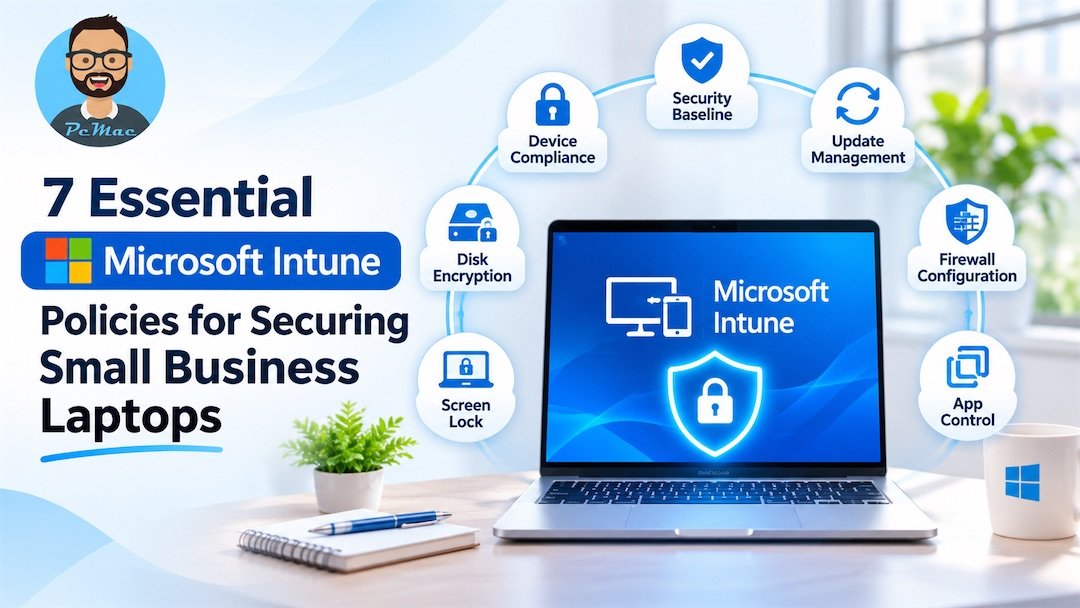
7 Essential Microsoft Intune Security Policies for Securing Small Business Laptops
As small businesses increasingly adopt hybrid and remote working environments, protecting company data across laptops has become a major cybersecurity challenge. Employees regularly access business applications, emails, and sensitive files from home networks, public Wi-Fi connections, and other remote locations. Without proper security controls, a lost laptop, compromised password, or outdated operating system can expose an organization to serious security risks.
Traditional perimeter-based security is no longer enough to protect a distributed workforce. Businesses need a centralized way to manage devices, enforce security settings, and control access to corporate resources.
Microsoft Intune provides a cloud-based endpoint management solution that helps organizations manage and secure Windows laptops remotely. IT administrators can use Intune to deploy security configurations, enforce device compliance, manage Windows updates, configure Microsoft Defender, and control application access.
For small businesses, implementing the right Microsoft Intune security policies is an effective way to establish consistent security standards without creating unnecessary administrative overhead.
In this guide, we will explore seven essential Microsoft Intune security policies and configurations that every small business should consider when securing company-managed Windows laptops.
Why Small Businesses Need Microsoft Intune Security Policies
Small businesses often have limited IT resources, making it difficult to monitor every laptop and manually enforce security settings.
Microsoft Intune helps simplify endpoint security by allowing administrators to manage devices through a centralized cloud-based platform.
With properly configured Intune policies, businesses can:
- Enforce security configurations across company-managed Windows laptops.
- Protect sensitive information using BitLocker encryption.
- Ensure devices receive important Windows security updates.
- Manage antivirus and firewall protection centrally.
- Prevent unauthorized access to corporate applications.
- Monitor device compliance and security status.
- Manage lost, stolen, or reassigned devices remotely.
Rather than configuring every laptop individually, administrators can create policies and assign them to specific user or device groups.
Here are seven essential security configurations to consider.
1. Enforce Multi-Factor Authentication and Conditional Access
- Passwords alone are no longer sufficient to protect business accounts against modern cyber threats. Phishing attacks, credential theft, and password reuse can allow attackers to access corporate resources even when devices have other security protections enabled.
- To strengthen identity security, businesses should implement Multi-Factor Authentication (MFA) and Microsoft Entra Conditional Access.
- Microsoft Intune works alongside Microsoft Entra ID (formerly Azure Active Directory) to provide device-based access control.
- You can configure Conditional Access policies to require users to complete MFA before accessing company resources such as Microsoft 365, Exchange Online, SharePoint, and OneDrive.
- You can also configure Conditional Access to evaluate device compliance before granting access.
For example, if an employee attempts to access company email from a laptop that does not meet the organization’s security requirements, Conditional Access can block access or require the device to become compliant.
Recommended security configurations
- Require MFA for employees accessing corporate applications.
- Require compliant devices for access to sensitive company resources.
- Block access from unsupported or unauthorized device platforms.
- Use risk-based Conditional Access where appropriate licensing is available.
- Maintain emergency access accounts to prevent administrator lockouts.
Why this matters: Even if an attacker obtains an employee’s password, MFA and Conditional Access provide additional protection against unauthorized access.
Important: MFA and Conditional Access are configured in Microsoft Entra ID, not as standalone Intune device configuration policies. Intune supplies device compliance information that Entra Conditional Access can use when making access decisions.
2. Require BitLocker Disk Encryption
- Laptops are portable devices, which makes them particularly vulnerable to loss and theft.
- If an employee loses a company laptop, unencrypted local storage could expose confidential business documents, customer information, financial records, and other sensitive data.
- BitLocker Drive Encryption helps protect information stored on Windows devices by encrypting the operating system and supported data drives.
- Microsoft Intune allows administrators to configure BitLocker through Endpoint Security disk encryption policies.
Recommended BitLocker settings
- Require BitLocker encryption on supported Windows devices.
- Configure appropriate encryption methods for operating system and fixed data drives.
- Require recovery information to be backed up to Microsoft Entra ID.
- Prevent users from bypassing important encryption requirements.
- Configure recovery options to support IT administrators.
- Consider blocking write access to unencrypted removable drives.
One particularly important setting is BitLocker recovery key backup.
Administrators should ensure recovery keys are successfully stored in Microsoft Entra ID so that authorized IT personnel can retrieve them when a user forgets their recovery information or encounters a recovery prompt.
How to configure BitLocker using Intune
- Sign in to the Microsoft Intune admin center.
- Navigate to Endpoint Security > Disk Encryption.
- Select Create Policy.
- Choose Windows as the platform.
- Select the BitLocker profile.
- Configure encryption and recovery settings.
- Assign the policy to your target device groups.
- Monitor deployment status and encryption compliance.
Before enabling silent BitLocker encryption, verify TPM requirements and check for existing third-party encryption software to avoid conflicts.
Why this matters: BitLocker helps protect sensitive information even if a company laptop is lost or stolen.
3. Configure Automated Windows Updates
- Unpatched operating systems are a common target for malware, ransomware, and other cybersecurity attacks.
- When employees postpone Windows updates, company laptops may remain vulnerable to security issues that have already been addressed by Microsoft.
- Microsoft Intune simplifies Windows update management through dedicated update policies.
- Using Windows Update Rings, administrators can control how and when Windows updates are installed across managed devices.
Recommended Windows Update configurations
- Configure automatic installation of quality and security updates.
- Use separate update rings for testing and production devices.
- Configure feature update deployment schedules.
- Set restart deadlines and user notification settings.
- Configure active hours to reduce interruptions during working hours.
- Use expedited quality update policies when urgent security updates require faster deployment.
Recommended deployment strategy
For small businesses, a phased update strategy is useful:
- Pilot group: Deploy updates to a small group of test laptops first.
- Production group: After checking application compatibility and device stability, deploy updates to the remaining company laptops.
- Monitoring: Review update deployment reports and investigate devices that fail to install updates.
Intune update rings can manage deferrals, deadlines, restart behavior, and user experience settings. Feature update and quality update policies provide additional controls for specific update scenarios.
Why this matters: Automated updates reduce the risk of running outdated operating systems and help maintain a consistent security posture across company laptops.
4. Implement Microsoft Defender Antivirus and Firewall Policies
- Antivirus protection and network security are essential components of endpoint security.
- Although Windows includes built-in security capabilities, administrators should not rely on users to configure these protections correctly.
- Microsoft Intune provides dedicated Endpoint Security policies for managing Microsoft Defender Antivirus and Windows Firewall settings.
Recommended Microsoft Defender Antivirus settings
Configure the following protections through an Intune Endpoint Security Antivirus policy:
- Enable real-time protection.
- Enable cloud-delivered protection.
- Enable behavior monitoring.
- Configure automatic security intelligence updates.
- Enable network protection where appropriate.
- Configure appropriate actions for detected threats.
- Enable tamper protection where supported by your environment and licensing.
Administrators should also review antivirus exclusions carefully because unnecessary exclusions can reduce endpoint protection.
Recommended Windows Firewall settings
Use Intune Endpoint Security Firewall policies to:
- Enable Windows Defender Firewall for domain, private, and public network profiles.
- Configure inbound connection rules.
- Block unnecessary inbound connections.
- Allow only required applications and network services.
- Review firewall rules periodically.
For laptops used outside the office, the public network firewall profile is particularly important.
Why this matters: Centralized antivirus and firewall management helps protect laptops against malware, suspicious network activity, and unauthorized connections.
5. Establish Device Compliance and Screen Lock Policies
- Configuring security settings is only part of endpoint protection. Businesses must also continuously verify that managed devices meet their minimum security requirements.
- This is where Microsoft Intune Device Compliance Policies become important.
- Compliance policies evaluate whether devices satisfy predefined security requirements. Their compliance status can then be used by Microsoft Entra Conditional Access to control access to corporate resources.
Recommended device compliance requirements
You should consider requiring:
- A supported Windows operating system version.
- Device encryption through BitLocker.
- An active antivirus solution.
- Windows Firewall enabled.
- A password or PIN to unlock the device.
- An appropriate screen-lock timeout.
- Current security patch levels.
Configure automatic noncompliance actions
Intune allows administrators to configure actions when a device fails compliance checks.
For example:
- Mark the device as noncompliant.
- Notify the employee about the security issue.
- Give the employee an appropriate remediation period.
- Restrict access to corporate resources through Conditional Access if the device remains noncompliant.
You can also configure policies to help prevent devices without an assigned compliance policy from being treated as compliant.
Configure screen lock protection
- For laptops that contain sensitive business information, configure an inactivity timeout and require authentication when the user returns.
- This helps prevent unauthorized access when employees leave their laptops unattended.
- Why this matters: Compliance policies help administrators identify devices that no longer meet security requirements and take appropriate action before they become a greater risk to the business.
Remember: Configuration policies and compliance policies serve different purposes. Configuration policies enforce settings, while compliance policies evaluate whether devices meet your organization’s requirements.
6. Manage Applications and Restrict Local Administrator Privileges
- Allowing employees to install unrestricted applications on company laptops can introduce security risks.
- Unverified applications may contain malware, unwanted software, or vulnerabilities that expose corporate information.
- At the same time, completely restricting software installation can create unnecessary support requests when employees need approved applications for their work.
- Microsoft Intune provides several capabilities to address this challenge.
Recommended application management practices
- Deploy approved business applications through Intune.
- Configure automatic application installation and updates where supported.
- Remove unnecessary local administrator privileges.
- Use Microsoft Defender Application Control (App Control for Business) to restrict unauthorized applications where appropriate.
- Review installed applications periodically.
- Use Endpoint Privilege Management to control approved elevation requests.
Use Endpoint Privilege Management
- Microsoft Intune Endpoint Privilege Management (EPM) allows standard users to perform specific tasks that require elevated privileges without giving them permanent local administrator rights.
- For example, an employee may need to install an approved business application or update a particular software component.
- Instead of granting full administrator access, administrators can create elevation rules for approved applications.
- These rules can require user confirmation, administrator approval, or other validation depending on the configuration.
Important licensing consideration
Endpoint Privilege Management requires additional licensing through the appropriate Intune add-on or Intune Suite entitlement. It is not automatically included with every Microsoft Intune subscription.
Why this matters: Restricting unnecessary administrator privileges and controlling application installation helps reduce the risk of unauthorized software and privilege escalation.
7. Configure Remote Device Wipe, Retire, and Autopilot Reset
- Even with strong security policies, laptops can still be lost, stolen, damaged, or reassigned to other employees.
- Businesses need a reliable device lifecycle management process to protect corporate information when these situations occur.
- Microsoft Intune provides remote device actions that help administrators manage company-owned and personally owned devices.
Understand the different Intune device actions
Retire
- The Retire action removes company data and management settings from a device while preserving personal data where supported.
- This is particularly useful when employees leave the organization or when a personally owned device is no longer managed by the company.
Wipe
- The Wipe action restores a supported Windows device to factory settings and removes its data and settings.
- This is generally appropriate when a company-owned laptop is permanently lost, reassigned, or needs to be securely reset.
Autopilot Reset
- Windows Autopilot Reset prepares an enrolled Windows device for reuse by removing user data, settings, and applications while maintaining its Microsoft Entra ID and Intune enrollment.
- This is useful when a laptop needs to be reassigned to another employee without performing a complete reinstallation.
Recommended device lifecycle practices
- Document who is authorized to perform remote device actions.
- Maintain an accurate inventory of company-owned laptops.
- Test reset and recovery procedures before production use.
- Use Retire for appropriate corporate data removal scenarios.
- Use Wipe when a complete device reset is required.
- Use Autopilot Reset when preparing eligible devices for reassignment.
- Verify device status after performing remote actions.
Why this matters: Remote device management helps businesses protect corporate information when devices are lost, stolen, or reassigned.
Best Practices for Managing Microsoft Intune Security Policies
Creating security policies is only the beginning. To maintain a secure environment, small businesses should follow a consistent policy management strategy.
Here are some practical recommendations:
1. Start with a security baseline
- Use Microsoft’s recommended security baselines as a starting point, then customize settings according to your business requirements.
2. Assign policies to the correct device groups
- Use clearly defined groups for pilot devices,
Official Microsoft references
These are useful authoritative links to include in your article: