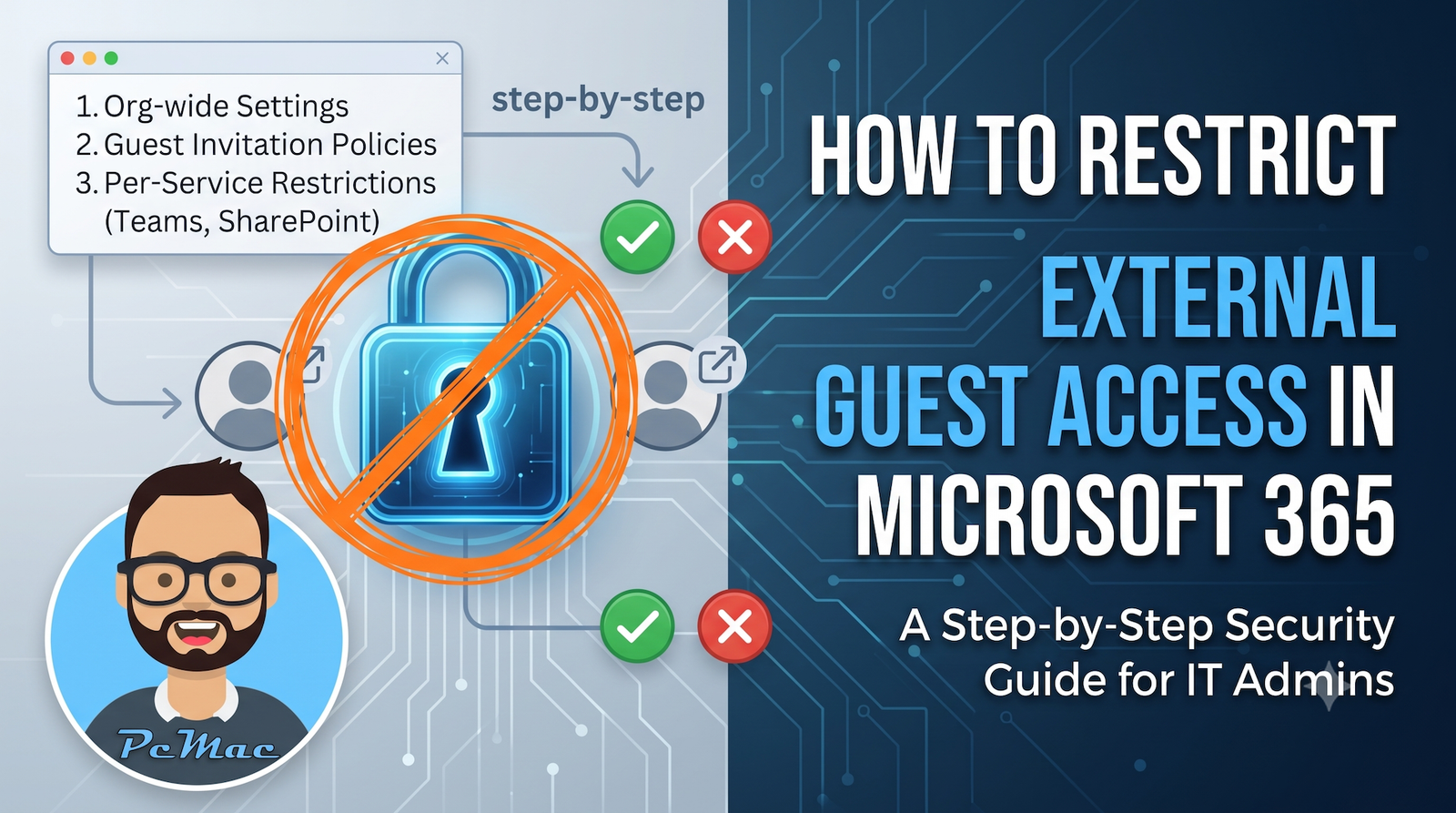
Collaboration is one of the greatest strengths of the modern cloud, but leaving virtual doors wide open is a major security risk for any organization. When external users—such as vendors, contractors, and clients—have unfettered access to your corporate ecosystem, your sensitive data becomes vulnerable to leaks, misconfigurations, and compliance violations. Knowing how to restrict external guest access in Microsoft 365 is essential for maintaining control over your organization’s digital perimeter without completely halting productivity.
Understanding Microsoft 365 External Collaboration Settings
Before making sweeping changes to your tenant, it helps to understand how guest access works across the Microsoft 365 suite. Microsoft Entra ID (formerly Azure AD) acts as the foundation for external identities, while specific workloads like SharePoint, OneDrive, and Microsoft Teams have their own granular governance settings.
By default, Microsoft 365 often ships with relatively permissive external sharing settings to make out-of-the-box collaboration as friction-free as possible. However, IT administrators must take a proactive approach by enforcing the principle of least privilege. This means limiting guest access strictly to the individuals who need it, and ensuring those guests can only view or edit the specific resources authorized for them.
Step-by-Step Guide to Restricting External Access
Securing your environment requires configuring settings at both the tenant level and the individual workload level. Follow these step-by-step instructions to tighten external controls across your Microsoft 365 tenant.
Step 1: Configure Microsoft Entra ID External Collaboration Settings
Your first line of defense is managing who can invite guests into your organization at the directory level.
- Log in to the Microsoft Entra admin center with a Global Administrator or Security Administrator account.
- Navigate to Identity, expand External identities, and select External collaboration settings.
- Under Guest user access, choose the restriction level that fits your security policy. Selecting Guest users have limited access to properties and memberships of directory objects is strongly recommended to prevent guests from browsing other users in your directory.
- Under Collaboration limitations, you can either allow invitations to be sent to any domain or restrict invitations to specific domains by creating an allowlist or denylist.
- Click Save at the top of the page.
Step 2: Restrict SharePoint and OneDrive Sharing
Because many collaboration workflows involve sharing files and folders, you must lock down SharePoint and OneDrive to prevent anonymous links or overly broad sharing.
- Open the SharePoint admin center using your administrator credentials.
- In the left-hand navigation pane, expand Policies and click on Sharing.
- Under external sharing, adjust the organization-level setting. To maximize security, consider changing it from Anyone to New and existing guests or Existing guests only.
- Under File and folder links, choose Specific people as the default sharing link type to ensure users must intentionally select who receives access rather than generating wide-open links.
- Scroll to the bottom of the page and click Save.
Step 3: Secure Microsoft Teams Guest Access
Microsoft Teams brings chat, meetings, and file collaboration together, making it a frequent target for unauthorized external exposure if left unmonitored.
- Access the Microsoft Teams admin center.
- Expand Users in the left menu and select Guest access.
- Set Allow guest access in Teams to Off if your organization does not require external collaboration inside Teams. If you do need it, leave it On but customize the granular meeting, messaging, and calling capabilities below it.
- For even tighter control, you can manage external access (federation) at the tenant level to communicate only with explicitly trusted organizations.
Best Practices for Ongoing Guest Governance
Locking down your environment once is not enough; security requires continuous oversight. Implement these best practices to maintain a healthy and secure collaboration landscape:
- Use Access Reviews: Leverage Microsoft Entra ID Governance to set up recurring access reviews for guest users, ensuring inactive or terminated guests are automatically removed.
- Enforce Multi-Factor Authentication (MFA): Require external users to register for and use MFA when accessing your Microsoft 365 resources by setting up Conditional Access policies.
- Monitor with Audit Logs: Regularly review Microsoft Purview audit logs to track external sharing activities, invitations, and file downloads.
- Classify Sensitive Data: Use Microsoft Purview sensitivity labels to automatically encrypt or restrict access to documents containing intellectual property or personally identifiable information (PII).
A secure cloud environment strikes the right balance between robust data protection and seamless operational efficiency.
Conclusion
Mastering how to restrict external guest access in Microsoft 365 is a critical responsibility for modern IT administrators. By shifting away from default permissive settings and implementing strict controls across Microsoft Entra ID, SharePoint, and Teams, you can significantly reduce your organization’s attack surface. Combined with regular access reviews and multi-factor authentication requirements, these proactive measures ensure that your company data remains secure while still allowing your teams to work effectively with trusted external partners.