Why Is Your Windows 11 PC Feeling Sluggish? | 10 Ways to Speed Up a Slow Windows 11 PC
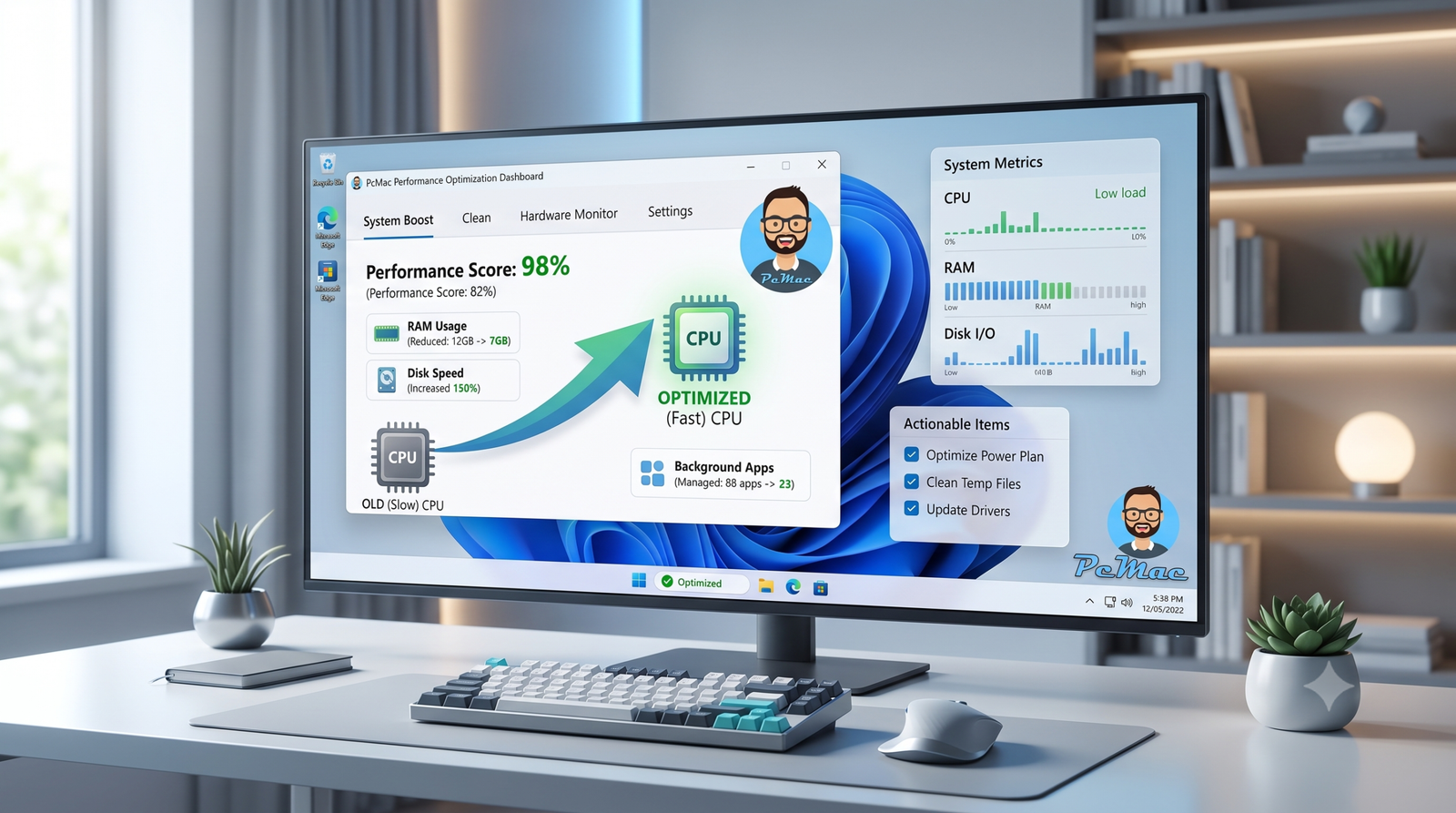
There is nothing quite as frustrating as watching the cursor spin endlessly while you are trying to finish a report, join a virtual meeting, or simply browse the web. If your machine feels like it is moving in slow motion, you are not alone. Many users experience a gradual drop in responsiveness over time, even on modern hardware.
Dealing with a slow computer during your daily tasks can disrupt your workflow and waste valuable time. Fortunately, you do not need to purchase expensive hardware upgrades or take your machine to a repair shop to fix the problem.
The goal of this article is to provide safe, practical steps to improve PC performance without overwhelming you. You do not need any advanced technical skills or a background in IT to follow these fixes. Each method is designed for everyday home and small-business users who want straightforward results.
By taking a few minutes to apply these proven strategies, you can reduce lag, free up valuable system resources, and restore that new computer feeling. Let us dive into the first practical fix to get your system back on track.
1. Restart Your Computer and Check Resource Usage
A simple restart can clear temporary system issues and close background processes that have accumulated during extended use. If your Windows 11 PC has become unusually slow, a reboot should always be your first step before trying more complicated fixes.
After your computer turns back on, you can use Task Manager to identify what is consuming your system resources:
- Press Ctrl + Shift + Esc to open Task Manager.
- Select the Processes tab.
- Check the CPU, Memory, and Disk columns to see current usage.
- Look for applications consistently using an unusually high amount of resources.
- If an application is not responding, select it and use End task only when you are sure it is safe to close.
If the same application repeatedly consumes excessive resources, check for an update or consider whether you actually need it running in the background.
2. Manage Startup Apps to Reduce Boot Time
When you power on your computer, many programs try to open and run in the background right away. Having too many applications launching automatically can significantly slow down your system boot and leave your PC feeling sluggish before you even open your first browser window. Managing these background programs is a great way to speed up Windows 11 without buying new hardware.
To see what is running at startup, press Ctrl, Shift, and Esc at the same time to open the Task Manager. Next, click on the speedometer icon on the left sidebar to open the Startup apps tab. Here, you will see a comprehensive list of software installed on your machine along with its startup impact level, which ranges from high to low.
Review the list carefully and look for nonessential programs like chat apps, gaming launchers, or music streaming services that you do not need running constantly. To stop an app from opening automatically, right-click on it and select Disable. Be sure to leave core system functions and security software enabled. Disabling these extra programs prevents them from consuming memory in the background, which results in a much faster and more responsive startup process every time you turn on your computer.
3. Uninstall Unused Software and Bloatware
Over time, most computers accumulate programs you no longer use, ranging from games you played once to manufacturer pre-installed software, often called bloatware. Lingering programs consume valuable storage space and background resources. Even when you are not actively using them, many of these applications run invisible background tasks, check for updates, and send notifications, which directly contributes to a slow computer.
Removing unnecessary applications is a straightforward way to reclaim system resources. To begin, open the Start menu and select the Settings app, represented by a gear icon. From the left-hand sidebar, click on Apps, and then select Installed Apps. Here, you will see a comprehensive list of everything currently installed on your computer, along with how much storage space each item occupies.
Scroll through the list to identify software you no longer need. When you find an app you want to remove, click the three dots next to its name and select Uninstall. Before you click, however, you must exercise caution. Warn yourself to research unfamiliar programs before removing them to avoid system errors, as some entries are essential system components required for Windows or your hardware to function properly. If a title looks completely foreign, do a quick online search first to confirm its purpose.
4. Clean Up Disk Space with Storage Sense
When your hard drive gets close to capacity, your system struggles to find the breathing room it needs to operate smoothly. This lack of free space is a primary contributor to Windows 11 slow PC symptoms. Your operating system relies on free drive space for virtual memory, temporary files, and routine background tasks. If your storage is nearly full, everything from opening files to launching web browsers takes significantly longer.
Fortunately, you do not need to purchase third-party software to clear out the clutter. Storage Sense is a built-in utility designed to manage your temporary files, system caches, and the recycle bin automatically.
To configure and run Storage Sense manually, open the Settings app by pressing the Windows key and the I key together. Navigate to System, click on Storage, and turn on the Storage Sense toggle switch. For deeper cleaning, click directly on Storage Sense to adjust its settings. Here, you can tell Windows to automatically delete temporary files that your apps no longer need. You can also configure how often the system empties the content of your recycle bin and your downloads folder. To clean your drive immediately without waiting for an automated schedule, click the Run Storage Sense Now button at the bottom of the menu.
5. Adjust Visual Effects for Better Responsiveness
Windows 11 features a modern interface filled with smooth animations, fade effects, and transparency. While these visual touches make the operating system look sleek, they can drain system resources on older hardware. When your computer struggles to render these graphics, the entire system can feel sluggish. Adjusting these settings is a great way to speed up Windows 11 without buying new hardware.
To change these settings, click the Start menu, type “adjust the appearance and performance of Windows,” and press Enter. This opens the Performance Options window. Under the Visual Effects tab, you will see several options. You can select “Adjust for best performance,” which turns off all animations and shadows. Alternatively, you can choose “Custom” and manually uncheck features you do not use, such as window contents while dragging, slide animations, or fading menus.
Making these changes creates a noticeable tradeoff. Your desktop will lose some of its modern polish and look a bit more basic, but windows will open instantly and menus will respond much faster. If you want a balance between aesthetics and speed, keep transparency enabled while disabling unnecessary window animations. This small tweak gives older machines an immediate performance boost.
6. Check for Windows and Driver Updates
Keeping your operating system and hardware drivers current is essential for system stability, security, and bug fixes. Microsoft regularly releases patches that resolve underlying issues causing a Windows 11 slow PC. Running the latest software ensures your system operates at peak efficiency.
To check for pending Windows 11 updates, open the Start menu and click on Settings. Select Windows Update from the left sidebar, and then click the Check for updates button. If any updates are available, let your computer download and install them, and then restart your system if prompted.
Beyond the operating system, component software matters significantly. Outdated graphics or chipset drivers can cause performance drops, graphical stuttering, and overall system instability. To update your graphics card and other hardware components, visit the official website of your hardware manufacturer, such as NVIDIA, AMD, or Intel, or check the optional updates section within the Windows Update menu. Keeping these drivers fresh ensures your hardware communicates seamlessly with the rest of your system, preventing unnecessary bottlenecks. Make this check a regular part of your maintenance routine to keep your computer running smoothly over the long term.
7. Scan for Malware and Background Threats
Malicious software is a common and often hidden culprit behind a slow computer. Viruses, spyware, and adware frequently run tasks in the background without your knowledge, consuming valuable processor power and memory. This malicious activity can cause sudden freezes, sluggish application response times, and frustrating delays during your daily tasks.
Fortunately, your operating system includes a reliable built-in tool to combat these threats. You can easily use Windows Security to scan your system and remove harmful files. To start a check, open the Start menu, search for Windows Security, and open the app. Select Virus and threat protection, and then click on Scan options. From there, you can choose a quick scan for a fast check of common areas, or select a full scan to thoroughly examine every file and running program on your storage drives.
Beyond running regular scans, adopting safe browsing habits is essential to prevent future performance issues. Avoid clicking on suspicious links in emails, download software only from official and trusted websites, and keep your web browser updated. By staying vigilant against digital threats, you protect your personal data and ensure your machine continues to run smoothly for all your daily needs.
8. Check Your Drive Health
Your storage drive holds your operating system, apps, and personal files, meaning a failing drive can cause severe system lag, freezing, or data loss. While many people overlook drive health, checking it is a vital step when troubleshooting a slow computer.
Windows includes built-in tools to monitor drive status. You can check your drive health by opening the Settings app, navigating to System, and selecting Storage. From there, click on Advanced storage settings and open the Disks & Volumes section to view drive properties and check for any reported errors. If you use a traditional hard drive, you can also search for the Defragment and Optimize Drives tool to check drive fragmentation and status.
If your storage drive shows signs of failing health, such as unusual clicking noises, frequent blue screens of death, or missing files, you should back up your important documents immediately to an external hard drive or cloud storage service. Replacing a failing drive early prevents permanent data loss and restores system reliability.
9. Reduce Unnecessary Background Apps
Even when apps are not actively open on your screen, many of them continue running in the background to check for updates, sync data, or send notifications. This hidden activity consumes memory and processing power, which can lead to a sluggish machine.
To see which applications are active, open the Windows Settings app, navigate to Apps, and select Installed Apps. Click the three dots next to an app you suspect and choose Advanced Options if available. From there, you can change the background app permissions from Always or Power Optimized to Never.
You can also manage active processes by pressing Ctrl, Shift, and Esc to open the Task Manager. Look through the Processes tab to see what is currently using your resources. If you spot an app you rarely use, simply right-click it and select End Task to free up immediate system capacity. Focus only on closing user applications like chat clients, media players, or games, and leave core system processes untouched to keep your computer stable.
10. Consider a Hardware Upgrade
While software tweaks and routine maintenance fix most performance issues, physical components occasionally need attention. Hardware upgrades are not necessary for every slow PC, but they can completely revitalize aging machines that otherwise meet your daily needs.
If your computer still uses an older mechanical hard drive, replacing it with a solid state drive delivers the single most dramatic speed increase possible. Solid state drives load the operating system, applications, and files in a fraction of the time.
Another effective option is adding more random access memory. If you frequently keep dozens of browser tabs open or run demanding programs, low memory will cause noticeable stuttering. Upgrading your memory allows the system to juggle multiple tasks smoothly without slowing to a crawl.
Before spending money on new hardware, check whether your specific computer model allows for these components to be replaced or expanded. For many modern laptops, components are soldered directly to the motherboard, meaning a complete system replacement might be your only physical option.
Conclusion: Maintaining a Fast and Healthy Windows 11 PC
Achieving successful Windows 11 optimization does not require expensive hardware upgrades or advanced technical knowledge. By taking control of your startup apps, clearing out digital clutter, managing background processes, and keeping your system updated, you can breathe new life into your machine. These straightforward adjustments work together to reduce system strain and give you back the snappy responsiveness you expect.
To keep your computer running smoothly over the long term, establish a simple routine maintenance schedule. Set a reminder once a month to empty your recycle bin, review recently installed applications, and run a quick security scan. Periodic checks ensure that minor background issues never snowball into major performance bottlenecks.
Maintaining a fast system is an ongoing habit rather than a one-time fix. Now that you have applied these practical adjustments, you can enjoy a faster, more reliable experience every time you sit down at your desk. Your computer is once again ready to handle your daily tasks without the frustration of endless loading screens.