How to Prevent Email Spoofing with SPF, DKIM, and DMARC in Microsoft 365
Email remains one of the most widely used communication tools in business, but it is also a common entry point for phishing attacks, invoice fraud, and business email compromise. Attackers can forge the sender address of an email to make it appear as though a message came from your company, a colleague, or a trusted business partner.
For organizations using Microsoft 365, configuring email authentication is an essential part of protecting the corporate domain and improving email security.
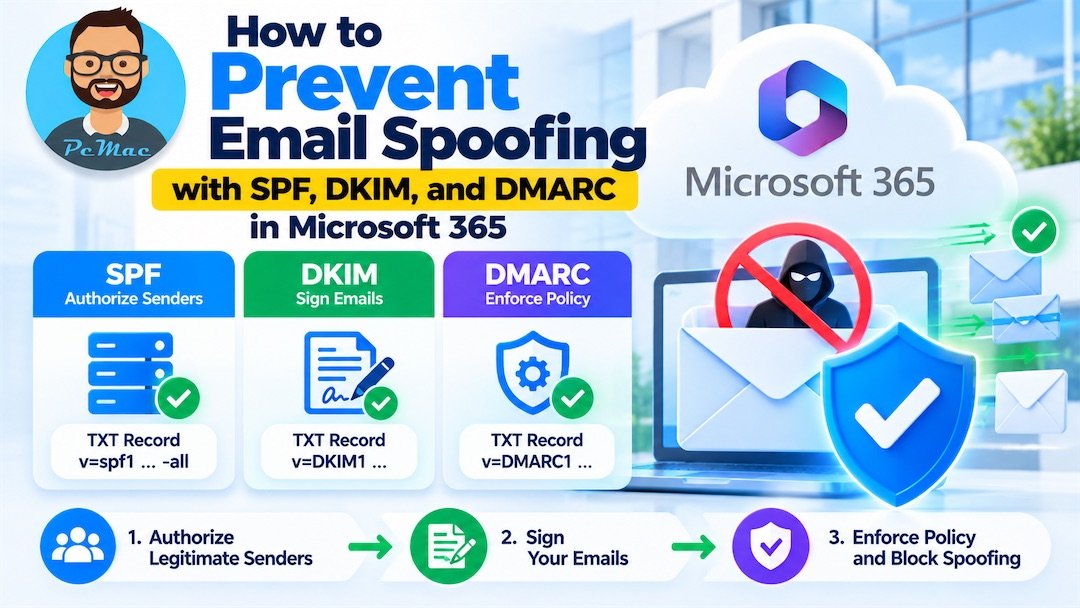
Three technologies work together to help prevent email spoofing: SPF (Sender Policy Framework), DKIM (DomainKeys Identified Mail), and DMARC (Domain-based Message Authentication, Reporting and Conformance).
In this step-by-step guide, we explain how to configure SPF, DKIM, and DMARC for Microsoft 365, publish the required DNS records, monitor authentication results, and gradually strengthen your domain’s protection without unnecessarily disrupting legitimate email delivery.
Whether you manage a small Microsoft 365 tenant or an enterprise Exchange Online environment, these practices will help you establish a stronger email authentication strategy.
What Is Email Spoofing?
Email spoofing occurs when a sender falsifies email identity information to make a message appear to originate from a trusted domain or person.
For example, an attacker might send a fraudulent invoice using an address that appears to belong to finance@yourcompany.com. The attacker may not have access to the actual mailbox; instead, they manipulate the message’s sender information.
Recipients may trust the message because the displayed sender looks familiar.
Common email spoofing attacks
- Executive impersonation: An attacker pretends to be a CEO or senior manager and requests an urgent payment.
- Vendor impersonation: A fraudulent email claims that a supplier has changed its bank account details.
- Credential phishing: A spoofed message directs employees to a fake Microsoft 365 sign-in page.
- Internal domain spoofing: An attacker forges an address using your organization’s domain.
- Business email compromise: Attackers use impersonation and social engineering to trick employees into transferring money or revealing sensitive information.
Email spoofing does not necessarily mean an account has been compromised. However, a successful spoofing attack can damage your organization’s reputation, increase phishing risk, and undermine customer trust.
Why SPF, DKIM, and DMARC Are Important in Microsoft 365
Microsoft 365 supports modern email authentication standards that help receiving mail systems evaluate whether messages are legitimately associated with a domain.
1. SPF: Sender Policy Framework
SPF identifies the mail servers authorized to send email for a domain. It works through a DNS TXT record that specifies permitted sending sources.
For a Microsoft 365 domain, SPF commonly includes Microsoft’s Exchange Online protection infrastructure.
However, SPF checks the envelope sender domain, not simply the address displayed in the email’s From field. SPF alone therefore cannot prevent every type of spoofing.
2. DKIM: DomainKeys Identified Mail
DKIM adds a digital signature to outgoing email. Receiving mail systems can validate the signature using a public key published in DNS.
This helps verify that the message was signed by the specified domain and that the signed message content has not been altered in a way that invalidates the signature.
DKIM is especially valuable because a valid signature can survive some forms of email forwarding that cause SPF to fail.
3. DMARC: Domain-based Message Authentication, Reporting and Conformance
DMARC builds on SPF and DKIM by checking whether at least one successful authentication method aligns with the domain visible in the From address.
A DMARC DNS record also specifies a policy for messages that fail DMARC and can identify where aggregate authentication reports should be sent.
The main DMARC policies are:
p=none— monitor authentication results without requesting DMARC-specific enforcement.p=quarantine— request that failing messages be treated as suspicious.p=reject— request that failing messages be rejected.
The recommended approach is to deploy these controls gradually, review legitimate sending sources, and move toward enforcement after validating the results.
Microsoft reference: https://learn.microsoft.com/en-us/defender-office-365/email-authentication-about
Prerequisites Before Configuring Email Authentication
Before making DNS changes, confirm that you have the following:
- A Microsoft 365 tenant with the required administrative access.
- Access to the DNS hosting provider for your domain.
- A list of all services that send email using your domain.
- Access to Microsoft Defender or Exchange Online administration as required.
- A mailbox or reporting service for DMARC aggregate reports.
- A plan for testing legitimate email delivery after configuration changes.
Identify every legitimate email source, including:
- Microsoft 365 and Exchange Online.
- On-premises Exchange servers or other SMTP systems.
- Customer relationship management (CRM) platforms.
- Marketing and bulk email services.
- Website contact forms and application-generated emails.
- Accounting, ticketing, monitoring, and notification systems.
Important: Do not publish an SPF record that authorizes only Microsoft 365 until you have confirmed that no other legitimate systems need to send email using the same domain.
Step 1: Configure SPF for Microsoft 365
SPF helps receiving mail systems determine whether an email’s sending source is authorized by the domain used in the envelope sender address.
Check your existing SPF record
Sign in to your DNS provider and inspect the TXT records for your domain.
For a typical Microsoft 365-only sending configuration, the SPF record commonly uses:
v=spf1 include:spf.protection.outlook.com -all
This is an example for a domain whose legitimate outbound email sources are limited to the relevant Microsoft 365 service. Your actual configuration may require additional authorized sources.
How to publish an SPF record
- Sign in to your DNS hosting provider.
- Open the DNS management page for your domain.
- Find the existing SPF TXT record.
- Confirm which systems are authorized to send mail.
- Update the existing record to include the required sources.
- Save the record and allow time for DNS propagation.
- Verify the record and test outgoing messages.
A typical DNS entry uses:
- Record type: TXT
- Host/name:
@or the domain root, depending on the DNS provider - Value: Your complete SPF policy
Important SPF rules
Publish only one SPF record per domain. If multiple services send email, combine their authorized sources into a single SPF record rather than creating multiple separate SPF records.
SPF also has a limit of ten DNS-query-causing terms during evaluation. Excessive nested include and other DNS lookups can cause SPF failures.
Do not blindly add a service to SPF simply because it appears in an email header. Confirm that the service is authorized to send messages for your organization.
After you have identified all legitimate sources and verified that they work, a hard-fail policy using -all can help specify that other sources are unauthorized. Plan the transition carefully to avoid affecting legitimate business email.
Microsoft reference: https://learn.microsoft.com/en-us/defender-office-365/email-authentication-spf-configure
Step 2: Enable DKIM Signing for Your Custom Domain
DKIM signs outgoing email using a private key associated with your domain. Receiving systems can use the corresponding public key in DNS to verify the signature.
For Microsoft 365 custom domains, DKIM must be configured for the domain you use in the visible From address so that the signature can align with DMARC.
Open the DKIM configuration page
- Sign in to the Microsoft Defender portal at https://security.microsoft.com/.
- Navigate to the email authentication settings for your domain, typically under Email & collaboration → Policies & rules → Threat policies → Email authentication settings.
- Open the DKIM section.
- Select your custom domain.
- Review the DNS records Microsoft requires.
The portal layout may change, so use Microsoft’s current DKIM setup documentation if the navigation differs.
Publish the required DKIM DNS records
Microsoft 365 provides the selector records required for your domain. These commonly take the form of two CNAME records named selector1._domainkey and selector2._domainkey.
Use the exact target values generated or documented for your tenant and domain. Do not copy CNAME targets from another organization or assume that an example value is correct for your tenant.
After publishing the records:
- Wait for DNS changes to propagate.
- Return to the DKIM configuration page.
- Enable DKIM signing for the domain.
- Send a test message to an external mailbox.
- Inspect the message headers to verify that DKIM passes and the signing domain is appropriate.
Why DKIM matters
A correctly configured DKIM signature can help preserve authentication when email is forwarded, provided the signature remains valid. It also supplies the aligned authentication path that DMARC needs when SPF fails or does not align.
Tip: Configure DKIM for every custom domain and sending subdomain that requires authenticated email. Do not assume that enabling DKIM for your primary domain automatically configures every other domain.
Microsoft reference: https://learn.microsoft.com/en-us/defender-office-365/email-authentication-dkim-configure
Step 3: Configure DMARC for Your Domain
DMARC helps receiving mail systems evaluate whether messages using your domain in the visible From address are authenticated by aligned SPF or DKIM.
Unlike SPF and DKIM configuration for Microsoft 365, DMARC for a custom domain is published as a TXT record at your DNS hosting provider.
Start with a monitoring policy
Before enforcing rejection, publish a DMARC record that allows you to review authentication results.
For example, a basic monitoring record is:
v=DMARC1; p=none; rua=mailto:dmarc@yourdomain.com; pct=100
Replace yourdomain.com with your actual domain, and create or configure the reporting destination before using it.
The fields mean:
v=DMARC1identifies the DMARC record version.p=nonerequests monitoring without DMARC-specific enforcement.rua=mailto:dmarc@yourdomain.comspecifies the destination for aggregate reports.pct=100applies the policy to the full message population for which the policy is relevant.
The reporting mailbox may receive structured XML reports from participating mail systems. A dedicated DMARC reporting service can make these reports easier to interpret.
Publish the DMARC record
In your DNS provider:
- Create a TXT record.
- Set the host/name to
_dmarc. - Add the DMARC policy value.
- Save the record.
- Verify the record using a DNS lookup tool.
- Review aggregate reports as they become available.
Do not create multiple DMARC TXT records at the same hostname.
Understand DMARC alignment
DMARC passes if at least one of these checks succeeds:
- SPF passes and the authenticated envelope sender domain aligns with the visible From domain.
- DKIM passes and the DKIM signing domain aligns with the visible From domain.
A message can therefore pass SPF but fail DMARC if the authenticated envelope sender does not align with the From address. The same principle applies to a valid DKIM signature from an unrelated domain.
Microsoft reference: https://learn.microsoft.com/en-us/microsoft-365/security/office-365-security/email-authentication-dmarc-configure
Step 4: Monitor Reports and Identify Legitimate Sending Sources
Publishing a DMARC record with p=none is only the beginning. The next task is to determine which systems are sending email using your domain and whether their messages pass authentication.
Review DMARC aggregate reports
Aggregate reports can help you identify:
- Sending IP addresses and sources.
- Message volumes associated with each source.
- SPF and DKIM authentication results.
- DMARC alignment failures.
- Unknown sources that may be attempting to spoof your domain.
Classify each sending source as legitimate, unauthorized, or requiring investigation.
If a legitimate marketing platform fails DMARC, for example, verify that it uses an aligned domain and that DKIM signing is configured correctly. Do not automatically authorize every unknown sender.
Check message headers
For a test email, open the message details or view the full internet headers in your email client.
Look for the Authentication-Results header and examine values such as:
spf=passdkim=passdmarc=pass
Also check the authenticated domains, including the SPF envelope sender domain and the DKIM signing domain.
A successful authentication result is not a guarantee that a message is safe. Phishing emails can originate from compromised legitimate accounts or domains, so authentication should be combined with anti-phishing and malware protection.
Step 5: Gradually Enforce DMARC
After reviewing reports and fixing legitimate authentication failures, begin strengthening your DMARC policy.
A typical rollout uses three stages.
Stage 1: Monitor with p=none
Collect reports, identify all legitimate sending sources, and resolve authentication and alignment problems.
Keep monitoring long enough to account for infrequent senders, scheduled reports, automated alerts, and other business systems.
Stage 2: Move to p=quarantine
Once legitimate sources authenticate correctly, consider moving to quarantine.
For example:
v=DMARC1; p=quarantine; pct=100; rua=mailto:dmarc@yourdomain.com
This requests that messages failing DMARC be treated as suspicious. Receiving systems determine the actual handling, and messages may be quarantined or delivered to junk depending on the recipient system.
Monitor legitimate mail carefully after the change.
Stage 3: Move to p=reject
When monitoring confirms that legitimate email sources are correctly configured, consider a reject policy:
v=DMARC1; p=reject; pct=100; rua=mailto:dmarc@yourdomain.com
This requests that receiving systems reject messages that fail DMARC.
Before moving to full enforcement, verify third-party services, subdomains, automated notifications, and other legitimate senders. A poorly planned enforcement change can disrupt business email.
Best practice: Do not move directly to p=reject without understanding your sending sources and reviewing authentication results.
Step 6: Secure All Domains and Third-Party Email Services
Organizations often have more than one domain and may use multiple services to send email.
For example, a company might send employee email through Microsoft 365, marketing email through a separate platform, and application notifications through a ticketing system.
Each legitimate sending source must be configured to authenticate appropriately.
Review your domain inventory
For every domain and sending subdomain:
- Confirm whether it sends email.
- Identify all authorized sending services.
- Configure SPF for the relevant sending domain.
- Enable DKIM signing where supported.
- Publish an appropriate DMARC record.
- Review authentication results and alignment.
DMARC records can apply to subdomains that do not publish their own records, but SPF records are not automatically inherited from a parent domain. Each sending domain or subdomain needs the appropriate configuration.
For services that do not need to send from your primary corporate domain, consider using a dedicated subdomain. This can help separate email reputation and simplify policy management.
For unused registered domains, consider publishing a DMARC reject policy and configuring DNS so that the domains are not unintentionally used for email.
Microsoft reference: https://learn.microsoft.com/en-us/microsoft-365/security/office-365-security/email-authentication-dmarc-configure
Step 7: Test and Troubleshoot Email Authentication
Once SPF, DKIM, and DMARC are configured, verify the results with controlled tests.
Send test messages
Send test messages from Microsoft 365 to external mailboxes that let you inspect the full message headers.
Confirm that SPF, DKIM, and DMARC results are as expected. Check the authenticated domains and verify that SPF or DKIM aligns with the domain displayed in the From address.
Troubleshoot common failures
SPF fails: Check the envelope sender domain, DNS record syntax, authorized sources, and DNS lookup limit.
DKIM fails: Verify the published selector CNAME records, the domain’s DKIM status, and whether the message was modified after signing.
DMARC fails: Check alignment between the visible From domain and the authenticated SPF or DKIM domain. A pass for SPF or DKIM alone is not sufficient if neither result aligns.
Legitimate forwarded mail fails authentication: Forwarding can break SPF, and message modification can invalidate DKIM. Review the message path and investigate Authenticated Received Chain (ARC) support for intermediary services where appropriate.
Use Microsoft 365 security features
Email authentication is one part of a broader defense. Review your anti-phishing policies, spoof intelligence, impersonation protection, quarantine settings, and incident response procedures.
Microsoft Defender for Office 365 provides additional security capabilities depending on your subscription and configuration.
Do not automatically allow every message that fails authentication. Investigate the sender and failure reason before creating an exception.
Step 8: Maintain and Review Your Email Security Configuration
Email authentication is not a one-time task. New applications, marketing providers, business acquisitions, and infrastructure changes can introduce new sending sources.
Establish a recurring review process that includes:
- Reviewing DMARC aggregate reports.
- Checking for unknown or unauthorized sending sources.
- Testing newly introduced email services.
- Verifying SPF syntax and DNS lookup limits.
- Confirming DKIM selectors remain valid.
- Reviewing DMARC enforcement and alignment.
- Auditing exceptions in Microsoft 365 anti-phishing policies.
- Monitoring suspicious sender activity and phishing reports.
- Documenting changes to DNS and email routing.
Keep a record of the domain owner, DNS provider, authorized sending services, and the person responsible for authentication changes.
Common Email Authentication Mistakes to Avoid
Publishing multiple SPF records
Multiple SPF records for the same domain can cause authentication failures. Combine the authorized sources into a single SPF record.
Enabling DMARC enforcement too early
A reject policy can disrupt legitimate email if some services are not configured correctly. Monitor authentication results and resolve legitimate failures before tightening the policy.
Forgetting third-party senders
Marketing platforms, applications, scanners, and notification systems may send messages using your domain. Include them in the assessment and configure them correctly.
Assuming SPF alone prevents spoofing
SPF does not authenticate the visible From address by itself. Use DKIM and DMARC as complementary controls.
Ignoring subdomains
Subdomains can be used for marketing, applications, and automated notifications. Review their SPF, DKIM, and DMARC requirements individually.
Treating authentication as complete phishing protection
Even authenticated email can be malicious if an account or sending service is compromised. Combine authentication with MFA, anti-phishing controls, user awareness, and incident response.
Frequently Asked Questions (FAQs)
1. How do I prevent email spoofing in Microsoft 365?
Configure SPF to authorize legitimate sending sources, enable DKIM signing for your custom domains, and publish a DMARC policy. Monitor reports and gradually move toward quarantine or reject enforcement after fixing legitimate authentication failures.
2. Is SPF enough to prevent email spoofing?
No. SPF authenticates the envelope sender domain, which may differ from the visible From address. DKIM and DMARC provide complementary protections, particularly through domain alignment.
3. What SPF record should I use for Microsoft 365?
A common starting point for a domain that sends email exclusively through the relevant Microsoft 365 infrastructure is v=spf1 include:spf.protection.outlook.com -all. Verify your actual sending sources before using it, and combine all required sources in one SPF record.
4. How do I enable DKIM in Microsoft 365?
Open the email authentication settings in the Microsoft Defender portal, select your custom domain, publish the required selector CNAME records, and enable DKIM signing after the records are available. Use the exact DNS targets provided for your domain and tenant.
5. What is the recommended DMARC policy?
Start with p=none to monitor authentication results. Move to p=quarantine after legitimate senders are correctly configured, and consider p=reject once monitoring shows that enforcement is safe.
6. How long does it take for SPF, DKIM, and DMARC DNS changes to work?
Timing depends on DNS TTL values, provider behavior, and propagation. Verify the records using DNS lookup tools and allow time for the changes to become visible before troubleshooting the Microsoft 365 configuration.
7. Can email still be spoofed when SPF, DKIM, and DMARC are configured?
These controls substantially improve domain authentication, but they do not eliminate every email threat. Attackers may use lookalike domains, compromised accounts, or malicious messages from legitimately authenticated services. Continue using Microsoft 365 anti-phishing protections and other security controls.
8. Do I need DMARC for every domain?
Review every registered domain and subdomain, including those used for sending email and those that are unused. Configure appropriate DMARC policies for each relevant domain and ensure that legitimate sending sources are correctly authenticated.
Conclusion
Email spoofing can expose organizations to phishing, financial fraud, and reputational damage. Microsoft 365 administrators can significantly strengthen domain authentication by implementing SPF, DKIM, and DMARC together.
Start by identifying every legitimate sending source, configure the required DNS records, enable DKIM signing, and publish a monitoring-only DMARC policy. Review aggregate reports, resolve alignment problems, and progressively move toward quarantine or reject enforcement.
Remember that email authentication is only one layer of protection. Combine it with Microsoft 365 anti-phishing policies, multifactor authentication, user awareness, and ongoing security monitoring to create a stronger defense against email-based attacks.
At PcMac, our goal is to help IT professionals secure Microsoft 365 environments with practical, actionable guidance. Use this guide as a reference when implementing or reviewing your organization’s email authentication configuration.