How to Audit Azure Active Directory Logs to Detect Unauthorized Access Attempts
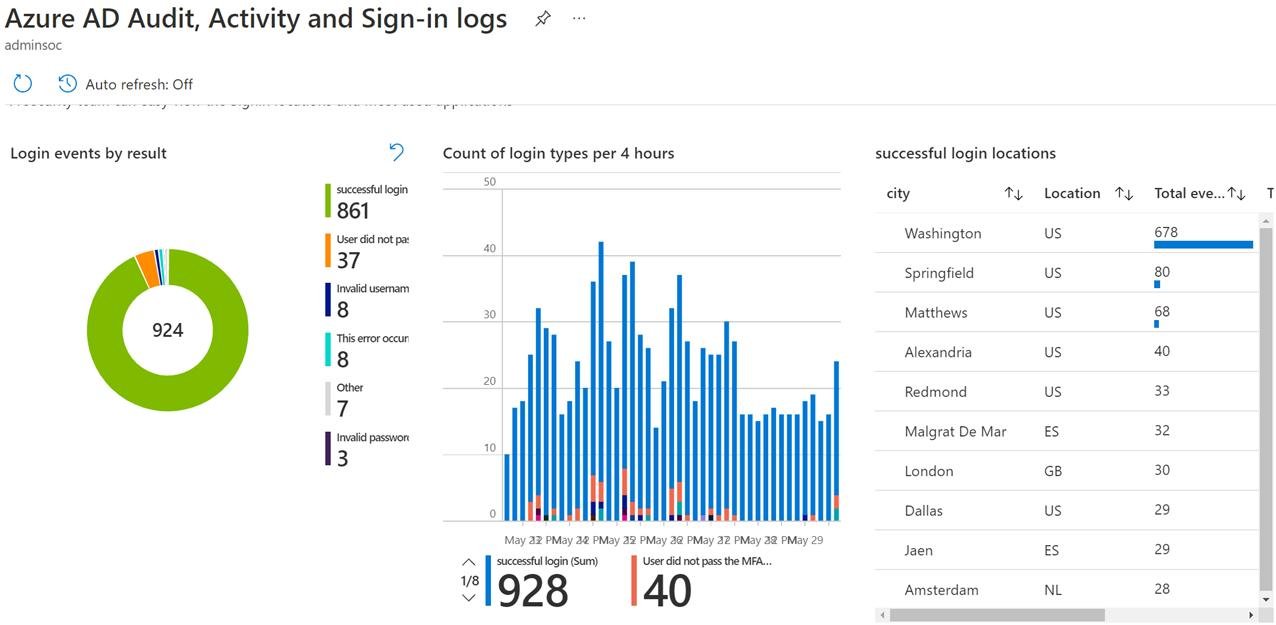
Unauthorized access is one of the most important security risks facing organizations that use Microsoft Azure and Microsoft 365. Attackers may attempt to compromise accounts through password spraying, stolen credentials, suspicious sign-ins, or attempts to bypass authentication controls.
Microsoft Azure Active Directory (Azure AD), now known as Microsoft Entra ID, provides sign-in logs, audit logs, and identity risk reports that help IT administrators investigate suspicious activity and identify potential security incidents.
In this step-by-step guide, you will learn how to audit Azure AD logs, identify suspicious authentication patterns, investigate unauthorized access attempts, and improve your organization’s identity security monitoring.
Whether you are a Microsoft 365 administrator, Azure engineer, IT security professional, or security analyst, these techniques can help you strengthen your identity protection strategy.
Why Audit Azure AD Logs?
Auditing identity logs helps administrators understand who is accessing organizational resources, when authentication attempts occur, and whether changes have been made to important identity configurations.
Regular log reviews can help identify:
- Repeated failed sign-in attempts against user accounts.
- Successful logins from unusual locations or unfamiliar devices.
- Suspicious activity involving privileged administrator accounts.
- Unexpected changes to user accounts, groups, or directory roles.
- Unauthorized application registrations or permission changes.
- Potential compromised accounts and risky authentication events.
Microsoft Entra ID provides several activity log types for these investigations. Sign-in logs record authentication activity, audit logs track directory changes, and provisioning logs help administrators investigate account provisioning across connected services. See the Microsoft Entra activity logs documentation.
Step 1: Access Azure AD Logs in Microsoft Entra ID
The first step is to open the Microsoft Entra admin center and locate the relevant activity logs.
- Open the Microsoft Entra admin center.
- Sign in using an authorized administrator or security monitoring account.
- Navigate to Entra ID > Monitoring & health.
- Open Sign-in logs to investigate authentication attempts.
- Open Audit logs to review changes made to users, groups, applications, and directory settings.
- Set an appropriate time range and apply filters to narrow the investigation.
The Reports Reader role is generally the least-privileged built-in role for viewing activity logs, subject to the task and applicable permissions.
For detailed navigation instructions, consult Microsoft’s guide to accessing Microsoft Entra activity logs.
Security tip: Use a dedicated account with the minimum permissions needed for log analysis rather than a Global Administrator account for routine monitoring.
Step 2: Review Sign-In Logs for Suspicious Authentication
Sign-in logs are usually the best starting point when investigating possible unauthorized access.
Review the following fields in each relevant record:
- Date and time: Determine when the attempt occurred.
- User: Identify the account involved.
- Application: Find the service or application being accessed.
- IP address: Investigate the source address and compare it with expected activity.
- Location: Look for unexpected geographic patterns.
- Status: Determine whether authentication succeeded or failed.
- Failure reason: Understand why the sign-in was unsuccessful.
- Authentication details: Review MFA and other authentication steps.
- Conditional Access: Determine which applicable policies were evaluated and their results.
- Device information: Check whether the device is registered, managed, or compliant when that information is available.
To investigate a record, select it and examine the available details, including authentication and Conditional Access information.
A failed sign-in does not automatically indicate an attack. Users may enter incorrect passwords, encounter expired credentials, or experience legitimate access problems. Investigate patterns and context rather than treating individual failures as conclusive evidence.
Step 3: Identify Repeated Failed Login Attempts
Repeated authentication failures can indicate password spraying, brute-force attempts, or attempts to use stolen credentials.
Look for patterns such as:
- Numerous failed sign-ins against one account.
- Failures affecting many accounts from the same IP address.
- Repeated authentication attempts across multiple applications.
- Login attempts using unexpected authentication methods.
- A series of failures followed by a successful sign-in.
Password spraying commonly involves trying a small number of passwords against many accounts to avoid triggering some account-specific thresholds.
To investigate:
- Filter sign-in logs for failed authentication attempts.
- Set a focused time window around the suspected activity.
- Group or compare events by user, IP address, application, and timestamp.
- Check whether the same source appears against multiple accounts.
- Review subsequent successful sign-ins from the same source or involving the same users.
- Compare the activity with known business patterns and approved security testing.
Repeated failures alone are not proof of compromise. However, failures followed by a successful sign-in from an unusual source deserve closer investigation.
Step 4: Investigate Unusual Locations and IP Addresses
Unexpected geographic activity can provide an important clue during a security investigation.
Review sign-ins involving:
- Locations that are inconsistent with the user’s normal activity.
- IP addresses associated with suspicious behavior.
- Rapidly changing locations or implausible travel patterns.
- Unfamiliar devices or browser sessions.
- Sign-ins from unexpected hosting providers or anonymization services.
Compare suspicious events with the user’s historical sign-in patterns, device details, application usage, and business travel.
Keep in mind that IP geolocation is not always accurate. Corporate VPNs, mobile networks, cloud services, and shared internet gateways can make legitimate users appear to sign in from unexpected locations.
Best practice: Treat location anomalies as investigation signals, not standalone proof of unauthorized access.
Step 5: Audit Directory Changes Using Audit Logs
Sign-in logs help investigate authentication, but they do not tell the whole story. Audit logs are essential when determining whether an attacker changed identity settings or established persistent access.
Navigate to Entra ID > Monitoring & health > Audit logs and examine activities related to:
User account changes
Look for unexpected account creation, account updates, password-related operations, or changes to user properties.
Group membership changes
Investigate unexpected additions to privileged or sensitive groups, including changes that might grant access to applications or resources.
Directory role assignments
Review role assignment changes, especially grants involving highly privileged roles.
Application registrations and permissions
Look for unfamiliar application registrations, changes to service principals, and unexpected consent or permission-related activity.
Authentication and security settings
Investigate unexpected changes to authentication methods, Conditional Access policies, or other security-related configurations where corresponding events are available.
For each suspicious event, inspect the actor, target resource, timestamp, operation, status, and available change details. Correlate the event with sign-in records to determine whether it may be connected to suspicious account activity.
See Microsoft’s Microsoft Entra audit log activity reference for activity categories and event descriptions.
Step 6: Investigate Risky Users and Sign-Ins
If your organization has the appropriate licensing, Microsoft Entra ID Protection provides risk detections and reports that can help prioritize identity investigations.
Review available reports for:
- Risky users.
- Risky sign-ins.
- Identity risk detections.
- Potentially compromised credentials.
- Suspicious authentication patterns identified by Microsoft’s detection systems.
When a risky sign-in is identified:
- Open the risk or sign-in record.
- Review the detection details and risk level.
- Compare the event with the user’s recent authentication history.
- Examine the application, IP address, location, device, and authentication details.
- Investigate related events involving the same account or source.
- Determine whether the activity is legitimate, suspicious, or likely compromised.
- Apply appropriate remediation based on the evidence.
Some risk detection and investigation features require Microsoft Entra ID P2 or other eligible licensing. Available features depend on the subscription and configuration.
Read Microsoft’s guide to investigating identity risk for recommended investigation and remediation approaches.
Step 7: Correlate Sign-In Logs and Audit Logs
One of the most effective investigation techniques is to correlate authentication activity with changes to the identity environment.
For example, consider this hypothetical sequence:
- An administrator account experiences multiple failed sign-in attempts.
- A successful sign-in occurs from an unfamiliar IP address.
- A new directory role assignment appears shortly afterward.
- The account then accesses an application it does not normally use.
Each event may have a legitimate explanation, but the combined sequence deserves urgent investigation.
To correlate events:
- Record the relevant user IDs, timestamps, IP addresses, application IDs, and correlation IDs where available.
- Compare sign-in activity with audit events during the same period.
- Check whether any privileged changes followed the suspicious sign-in.
- Look for related activity involving other accounts or applications.
- Preserve relevant logs and document the investigation timeline.
Remember that not every log record has the same identifiers or level of detail. Correlation IDs are useful when available, but they should not be expected to connect every event across different services.
Step 8: Export Logs for Advanced Investigation
For larger investigations, exporting logs makes it easier to retain evidence, analyze patterns, and share findings with authorized security teams.
Microsoft Entra supports downloading activity logs in CSV or JSON formats.
To download logs:
- Open the relevant Sign-in logs or Audit logs view.
- Set the appropriate date range and filters.
- Select the download option.
- Choose CSV or JSON, depending on your analysis workflow.
- Store the exported records in an approved, access-controlled location.
- Preserve timestamps and relevant investigation details.
For recurring investigations, consider routing activity logs to Azure Monitor Logs, an Azure Storage account, an event hub, or a supported SIEM solution.
Microsoft documents these options in its guide to accessing and integrating activity logs.
Step 9: Use Microsoft Sentinel for Continuous Monitoring
Manually reviewing logs is useful for targeted investigations, but continuous monitoring can help identify suspicious activity more quickly.
Where appropriate, integrate Microsoft Entra logs with Microsoft Sentinel or another supported security information and event management (SIEM) platform.
Potential detection scenarios include:
- Repeated failed sign-ins across multiple accounts.
- Suspicious sign-ins followed by successful authentication.
- Unexpected privileged role assignments.
- Unusual changes to Conditional Access policies.
- Suspicious application registrations or permission changes.
- Risky sign-ins involving sensitive accounts.
Build analytics rules that account for your organization’s normal behavior, existing security controls, and expected administrative activity. Use alert severity, suppression, and investigation playbooks to reduce unnecessary noise.
Test detection rules with approved simulations and tune them before relying on them for incident response.
Step 10: Respond to Confirmed or Suspected Unauthorized Access
When the available evidence suggests an account may be compromised, follow your organization’s incident response process.
Depending on the investigation and the level of risk, actions may include:
- Contact the security operations team and preserve relevant evidence.
- Block sign-in for the affected account if appropriate.
- Revoke active sessions and refresh tokens using supported administrative controls.
- Reset credentials and require authentication method re-registration when compromise is suspected.
- Review and remove unauthorized role assignments, application permissions, or persistence mechanisms.
- Check for related activity involving other accounts and resources.
- Review MFA, Conditional Access, and other identity protection controls.
- Document the incident, remediation steps, and follow-up actions.
Use caution before removing access or changing security settings, especially for critical service accounts and privileged identities. Follow approved emergency procedures to avoid unnecessary service disruption.
After containment, continue monitoring for repeated attempts and verify that the suspected access path has been addressed.
Step 11: Configure Log Retention and Ongoing Monitoring
A successful audit process depends on having enough historical data to investigate incidents.
Default Microsoft Entra activity-log retention depends on the log type and licensing. For example, Microsoft’s published retention guidance lists seven days for audit and sign-in logs with the Free edition and 30 days with P1 or P2. Verify the current requirements and your tenant’s configuration before relying on those periods.
To retain logs for longer:
- Configure diagnostic settings to send relevant logs to Azure Monitor Logs or Azure Storage.
- Integrate logs with a SIEM platform where appropriate.
- Restrict access to stored security records.
- Establish retention periods that meet operational, regulatory, and compliance requirements.
- Periodically test that logs are being collected and can be queried successfully.
See Microsoft’s Microsoft Entra data retention documentation for current details.
Azure AD Log Auditing Checklist
Use this checklist as part of your regular identity security review.
- Review recent sign-in failures and suspicious successful sign-ins.
- Investigate repeated failures across multiple user accounts.
- Examine unusual IP addresses, locations, devices, and applications.
- Review authentication details and Conditional Access results.
- Audit privileged role assignments and group membership changes.
- Investigate unexpected application registrations and permissions.
- Review risky users and risky sign-ins where licensing permits.
- Correlate sign-in activity with audit events.
- Export and preserve relevant evidence.
- Verify that log retention and monitoring integrations work.
- Document incidents, remediation, and follow-up actions.
Conclusion
Auditing Azure Active Directory logs is an important part of protecting organizational identities and cloud resources. By reviewing sign-in activity, investigating directory changes, examining identity risk detections, and correlating related events, administrators can identify potential unauthorized access and respond more effectively.
For stronger protection, combine regular manual audits with automated alerts, appropriate MFA and Conditional Access policies, sufficient log retention, and a documented incident response process.
Microsoft Entra ID provides the foundation for identity monitoring, while Azure Monitor and Microsoft Sentinel can help organizations scale their investigations and continuous security monitoring.
Explore more Microsoft Azure, Microsoft 365, and cybersecurity tutorials on PcMac to strengthen your organization’s cloud security.