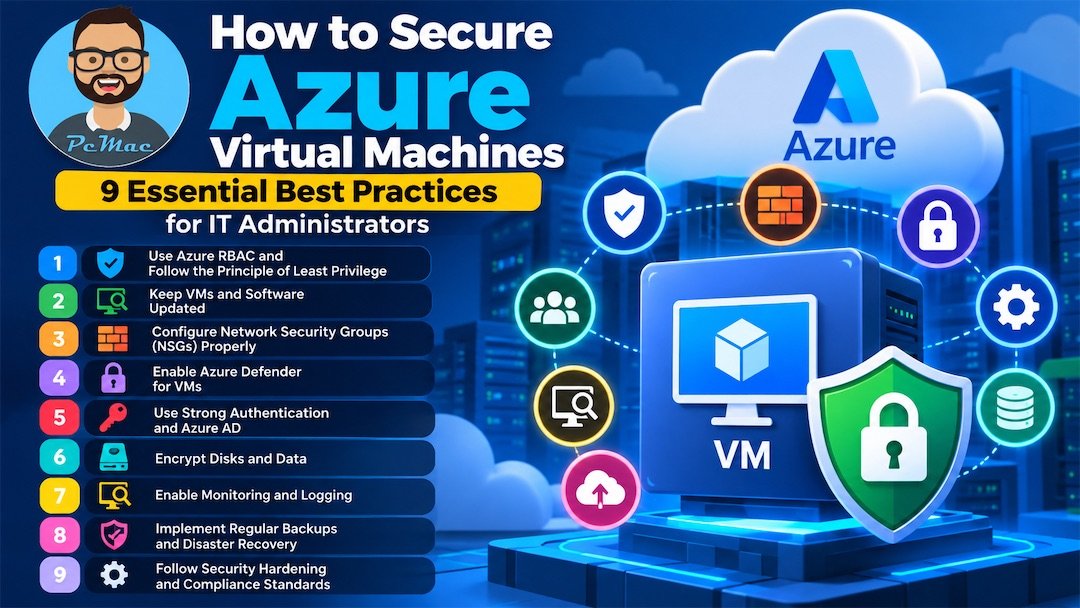
How to Secure Azure Virtual Machines: 9 Essential Best Practices for IT Administrators
Microsoft Azure Virtual Machines (VMs) provide businesses with flexible, scalable computing infrastructure without the need to maintain physical servers. However, deploying a virtual machine in the cloud does not automatically make it secure. Misconfigured network rules, weak authentication, unpatched operating systems, and insufficient monitoring can expose workloads to cyberattacks.
For IT administrators, securing Azure virtual machines should be an ongoing process that combines identity protection, network security, operating system hardening, data encryption, threat detection, and disaster recovery.
In this guide, we explore nine essential Azure VM security best practices to help you reduce your attack surface, protect sensitive data, and improve your organization’s cloud security posture.
Whether you manage a single Azure VM or an enterprise-scale cloud environment, these recommendations provide a practical starting point for building a more secure infrastructure.
Why Is Azure Virtual Machine Security Important?
Azure VMs can host business-critical applications, databases, websites, development environments, and internal services. If attackers compromise a VM, they may steal sensitive information, install malware, disrupt services, or use the compromised system to access other resources.
Common Azure VM security risks include:
- Exposed Remote Desktop Protocol (RDP) and Secure Shell (SSH) ports.
- Weak passwords and compromised administrator accounts.
- Missing operating system and application security updates.
- Excessive Azure role-based access control (RBAC) permissions.
- Inadequate disk encryption and secret management.
- Poor logging, alerting, and incident response.
- Unprotected backups and insufficient disaster recovery planning.
Microsoft recommends applying layered security controls and Zero Trust principles to Azure workloads. This means verifying access, granting only the permissions required, and assuming that a security incident could occur.
1. Implement Azure RBAC and the Principle of Least Privilege
Identity and access management are fundamental to Azure VM security. Every administrator, developer, service account, and automation process should have only the permissions required to perform its responsibilities.
Azure role-based access control (RBAC) allows you to assign permissions at different scopes, including management groups, subscriptions, resource groups, and individual resources.
Best practices for Azure access control
- Assign built-in Azure roles whenever they meet your requirements.
- Avoid granting Owner or Contributor permissions at subscription scope without a clear business need.
- Use Microsoft Entra ID groups to manage permissions consistently.
- Review privileged role assignments regularly.
- Use Microsoft Entra Privileged Identity Management (PIM), where available, to provide time-limited privileged access.
- Assign managed identities to Azure resources that need to access supported Azure services instead of storing credentials in scripts or configuration files.
For example, a support engineer who only needs to start and restart a VM should not automatically receive permission to modify networking, change security policies, or manage an entire subscription.
Actionable tip: Open the Azure portal, navigate to the relevant VM or resource group, and select Access control (IAM). Review role assignments and remove unnecessary privileges after validating operational dependencies.
Microsoft reference: Azure IaaS security best practices.
2. Keep Azure VMs and Software Updated
Unpatched operating systems and applications are common sources of security vulnerabilities. Attackers frequently target known weaknesses for which security updates already exist.
Keeping Windows Server, Linux distributions, installed applications, drivers, and security agents updated helps reduce exposure to known vulnerabilities.
Recommended patch management practices
- Establish a regular patching schedule based on workload criticality and risk.
- Prioritize actively exploited and critical vulnerabilities.
- Use Azure Update Manager to assess and manage updates for supported machines.
- Test important updates in a nonproduction environment before broad deployment.
- Automate patching where appropriate and verify installation results.
- Maintain an exception process for workloads that cannot be updated immediately.
- Confirm that legacy operating systems remain supported and have an approved mitigation plan if they cannot be upgraded.
For production systems, define maintenance windows and recovery procedures before applying changes. Monitor application health after patching to identify compatibility issues.
Actionable tip: Use Azure Update Manager to assess update compliance across your VM estate and establish a repeatable process for deploying security updates.
Microsoft reference: Azure Update Manager.
3. Configure Network Security Groups Correctly
Network Security Groups (NSGs) help control inbound and outbound traffic to Azure resources. They contain security rules that evaluate traffic based on source, destination, protocol, port, and priority.
Incorrect NSG configuration can expose virtual machines to unauthorized access, scanning, brute-force attempts, and other attacks.
How to secure Azure VM networking
- Apply NSGs to appropriate subnets and network interfaces.
- Allow only the ports required by the workload.
- Restrict administrative access to approved source IP addresses or trusted private networks.
- Avoid unnecessary public IP addresses on virtual machines.
- Separate application, database, and management workloads into appropriate network segments.
- Review both inbound and outbound rules.
- Document required network flows and periodically remove obsolete rules.
Never expose RDP on TCP port 3389 or SSH on TCP port 22 to the entire internet using an unrestricted source such as 0.0.0.0/0.
For remote administration, consider Azure Bastion, a properly secured VPN, or time-limited access through Microsoft Defender for Cloud’s Just-in-Time (JIT) VM access feature where supported and licensed.
Remember that NSGs are one layer of protection. Combine them with appropriate routing, firewalls, identity controls, and host-based security.
Actionable tip: Review each NSG rule and confirm that its source, destination, port, protocol, and priority match a documented requirement.
Microsoft reference: Secure administrative access to Azure VMs.
4. Enable Microsoft Defender for Cloud and Endpoint Protection
Preventive controls are essential, but administrators also need to identify vulnerabilities, detect suspicious activity, and respond to potential threats.
Microsoft Defender for Cloud provides security posture management, recommendations, and workload protection capabilities. Microsoft Defender for Servers offers additional security features depending on the selected plan and configuration.
Recommended security controls
- Review Defender for Cloud recommendations for your subscriptions and VMs.
- Evaluate Microsoft Defender for Servers plans against your organization’s requirements.
- Use supported endpoint protection and endpoint detection and response (EDR) capabilities.
- Assess VM vulnerabilities and remediate findings based on risk.
- Investigate suspicious processes, unauthorized changes, and unusual activity.
- Configure alert notifications and establish incident response procedures.
- Enable Just-in-Time VM access where supported and appropriate.
Defender for Cloud features and licensing requirements vary. Review the capabilities available in your subscription before planning a deployment.
Actionable tip: Open Microsoft Defender for Cloud and review the recommendations affecting your virtual machines. Prioritize exposed management ports, missing security controls, and high-risk vulnerabilities.
Microsoft reference: Protect VMs with Microsoft Defender for Servers.
5. Enforce Strong Authentication and Secure Remote Access
A strong network perimeter cannot compensate for compromised administrator credentials. Authentication must be protected for both the Azure management plane and operating system access.
Use Microsoft Entra ID capabilities for Azure resource access and supported VM sign-in scenarios. Apply appropriate Windows or Linux authentication controls for the operating system itself.
Authentication best practices
- Enforce multifactor authentication (MFA) for privileged and administrative accounts.
- Use Conditional Access policies where supported and licensed.
- Prefer SSH keys or other approved strong authentication methods for Linux administration.
- Use strong, unique credentials and secure password-management practices where passwords remain necessary.
- Disable unused accounts and remove access promptly when employees change roles or leave.
- Avoid shared administrator accounts.
- Use separate privileged accounts for administrative tasks.
- Store secrets in an approved secret-management service such as Azure Key Vault.
For remote access, prefer Azure Bastion or a secured private connectivity solution over direct internet exposure. Microsoft Entra authentication and MFA requirements depend on the sign-in method and configuration; not every VM authentication method uses the same controls.
Actionable tip: Inventory all administrator sign-in paths, including the Azure portal, RDP, SSH, VPN, automation accounts, and emergency accounts. Confirm that each has an appropriate authentication and auditing policy.
Microsoft reference: Microsoft Entra identity and access management best practices.
6. Encrypt Virtual Machine Disks and Sensitive Data
Encryption protects data from unauthorized disclosure if storage media or snapshots are accessed outside the intended security boundary.
Azure managed disks support encryption at rest by default using platform-managed keys. Depending on your security, regulatory, and operational requirements, additional options may include customer-managed keys, encryption at host, and operating system-level encryption.
Data protection best practices
- Confirm that OS disks and data disks meet your encryption requirements.
- Evaluate customer-managed keys when your organization requires additional control over key lifecycle and access.
- Protect keys and secrets with Azure Key Vault where applicable.
- Restrict access to disk resources, snapshots, and backup data.
- Encrypt sensitive information in transit using appropriate protocols such as TLS.
- Rotate keys according to organizational policy and validate recovery procedures before changing key configurations.
- Review temporary disk, cache, and data-flow encryption requirements for your VM configuration.
Encryption options differ in their coverage, prerequisites, and management responsibilities. Select a configuration that protects the data you need to secure without overlooking key availability and recovery.
Actionable tip: Inventory the encryption settings for every production VM and document who can access the data, who controls the keys, and how access will be recovered during an incident.
Microsoft reference: Azure Virtual Machines security overview.
7. Enable Monitoring, Logging, and Security Alerts
Security controls are less effective when administrators cannot see what is happening across their environment. Centralized logging helps teams investigate incidents, detect unusual behavior, and understand changes to critical resources.
Azure provides several monitoring and logging capabilities, including Azure Monitor, Azure Activity Log, Log Analytics, and Microsoft Defender for Cloud.
What should IT administrators monitor?
- Changes to VM configurations and network security rules.
- Azure role assignments and privileged access activity.
- Failed or unusual sign-in attempts.
- Unexpected VM restarts or availability changes.
- Endpoint security alerts and malware detections.
- Critical operating system and application events.
- Changes to disks, snapshots, backup settings, and public IP exposure.
- Unexpected outbound network connections.
Create alerts for high-risk events and send them to the team responsible for investigating them. Define retention periods based on operational needs, applicable regulations, and investigation requirements.
Avoid collecting excessive data without a purpose. Logging should provide useful security visibility while respecting privacy, cost, and data-retention requirements.
Actionable tip: Create a monitoring baseline for production VMs, test alert delivery, and document who is responsible for investigating each alert category.
Microsoft reference: Azure Monitor documentation.
8. Configure Regular Backups and Disaster Recovery
Even well-secured virtual machines can be affected by ransomware, accidental deletion, application failures, or infrastructure incidents. Reliable backups and tested recovery procedures help reduce downtime and data loss.
Azure Backup can protect supported Azure VMs, while Azure Site Recovery can support disaster recovery scenarios when configured for the workload.
Backup and recovery best practices
- Define recovery point objectives (RPOs) and recovery time objectives (RTOs).
- Configure backup policies according to business requirements.
- Protect backup data with appropriate access controls and security settings.
- Evaluate immutable or otherwise protected backup options where supported.
- Restrict who can delete backups or change retention policies.
- Monitor backup jobs and investigate failures promptly.
- Test restore operations regularly.
- Document recovery procedures and dependencies.
- Evaluate cross-region recovery requirements for business-critical workloads.
A successful backup job does not guarantee that an application can be recovered within its required timeframe. Restoration must be tested, including application consistency, network configuration, identity dependencies, and data integrity.
Actionable tip: Schedule a recovery exercise for each critical workload and record the actual recovery time, data recovered, and issues that need remediation.
Microsoft references: Azure Backup and Azure Site Recovery.
9. Apply Security Hardening and Compliance Policies
Default configurations are not always suitable for production workloads. VM hardening reduces unnecessary services, insecure settings, and opportunities for attackers to exploit the operating system.
A consistent security baseline also makes it easier to manage large VM estates and demonstrate compliance.
Essential VM hardening measures
- Use supported Windows Server or Linux operating system versions.
- Apply approved operating system security baselines.
- Disable unused services, ports, protocols, and accounts.
- Restrict local administrator and root access.
- Configure host firewalls and endpoint protection.
- Use secure boot and virtual Trusted Platform Module (vTPM) capabilities through Trusted Launch where supported.
- Use Azure Policy to audit or enforce required configurations.
- Review Microsoft Defender for Cloud recommendations regularly.
- Maintain an accurate inventory of virtual machines, owners, applications, and data classifications.
- Document exceptions and assign remediation deadlines.
For organizations with regulatory obligations, map controls to the applicable framework and verify evidence requirements with the compliance team. A security recommendation or policy assignment alone does not guarantee regulatory compliance.
Actionable tip: Establish a standard VM build template or image, apply the required security baseline, and validate it before deploying new production workloads.
Microsoft reference: Azure Well-Architected Framework — Virtual Machines.
Azure VM Security Checklist for IT Administrators
Use this checklist during routine security reviews, new VM deployments, and infrastructure audits.
- Review Azure RBAC assignments and remove unnecessary permissions.
- Require MFA for privileged accounts and secure administrative sign-in methods.
- Remove unnecessary public IP addresses.
- Verify that RDP and SSH are not unrestricted from the internet.
- Configure and review NSGs and network segmentation.
- Install operating system and application security updates.
- Review Defender for Cloud recommendations and endpoint protection.
- Verify disk encryption and key-management controls.
- Enable relevant activity logs, security monitoring, and alerts.
- Configure backups and test recovery procedures.
- Apply operating system hardening and Azure Policy controls.
- Review security exceptions, document owners, and track remediation.
Prioritize critical and actively exploited vulnerabilities, exposed administrative interfaces, and weaknesses that could lead to broad access across your Azure environment.
Common Azure VM Security Mistakes to Avoid
Even experienced IT teams can overlook basic security weaknesses. Watch for these common mistakes:
Leaving RDP or SSH open to the internet: Restrict administrative connectivity and use secured access methods.
Giving users excessive permissions: Apply least privilege and review role assignments regularly.
Delaying security updates: Prioritize critical vulnerabilities and automate patch management where appropriate.
Assuming default encryption covers every requirement: Check your complete data protection and key-management requirements.
Ignoring security alerts: Assign alert owners, define escalation procedures, and test incident response.
Backing up data without testing restores: Perform recovery exercises to validate backup integrity and recovery objectives.
Using inconsistent VM configurations: Standardize deployments with approved images, policies, and repeatable security baselines.
Frequently Asked Questions (FAQs)
1. How do I secure an Azure virtual machine?
Start by restricting network access, applying least-privilege RBAC, enforcing strong authentication, installing security updates, enabling endpoint protection, encrypting sensitive data, monitoring security events, configuring backups, and applying operating system hardening.
2. Should Azure VMs have public IP addresses?
Not necessarily. Private IP addresses are preferable for many internal workloads. If public access is required, use appropriate network controls, firewalls, application gateways, or other protective services and expose only the necessary services. Administrative access should not be left unrestricted.
3. How can I protect RDP and SSH access to Azure VMs?
Avoid unrestricted inbound access to TCP ports 3389 and 22. Consider Azure Bastion, a secured VPN, private networking, and Just-in-Time VM access where supported. Apply strong authentication and audit administrative connections.
4. Does Azure encrypt virtual machine disks by default?
Azure managed disks are encrypted at rest by default using platform-managed keys. Additional controls, including customer-managed keys and encryption at host, may be appropriate depending on your security and compliance requirements.
5. What is Microsoft Defender for Cloud used for?
Microsoft Defender for Cloud helps organizations assess cloud security posture, identify misconfigurations, and access threat-protection capabilities. Available workload protection features depend on the selected plan and configuration.
6. How often should Azure virtual machines be patched?
There is no single schedule suitable for every workload. Assess vulnerabilities continuously or regularly, prioritize critical and actively exploited issues, and deploy updates according to risk, testing requirements, and approved maintenance windows.
7. What is the difference between Azure Backup and Azure Site Recovery?
Azure Backup focuses on protecting data and recovering supported resources from backups. Azure Site Recovery supports disaster recovery by replicating workloads and orchestrating failover and failback scenarios. They address related but different recovery needs.
8. How can I audit Azure VM security?
Review Azure RBAC, NSGs, public exposure, patch compliance, encryption settings, Defender for Cloud recommendations, activity logs, backup status, and operating system hardening. Azure Policy can help assess or enforce selected configuration requirements.
Conclusion
Securing Azure virtual machines requires more than enabling a firewall or installing antivirus software. IT administrators need a layered strategy that protects identities, restricts network access, maintains updated systems, encrypts data, monitors threats, and ensures that workloads can be recovered after an incident.
By implementing these nine best practices, your organization can reduce unnecessary exposure, improve visibility, and establish a repeatable approach to Azure VM security.
Start with the highest-risk issues: unrestricted RDP or SSH access, excessive permissions, critical missing patches, and untested backups. Then use monitoring, policy enforcement, and regular security reviews to maintain your security posture as your environment evolves.
At PcMac, our goal is to help IT professionals make cloud infrastructure more secure, reliable, and manageable. Review these recommendations regularly and adapt them to your organization’s workloads, risk profile, and compliance requirements.