How to Audit Azure IAM Roles and Permissions: A Step-by-Step Guide for IT Admins
Securing your Microsoft Azure environment starts with understanding who has access to your cloud resources and what they are allowed to do. Every user, group, application, and managed identity with access to your Azure environment should have only the permissions necessary to perform its assigned tasks.
Microsoft Azure provides Identity and Access Management (IAM) through Azure Role-Based Access Control (RBAC), allowing administrators to manage permissions across management groups, subscriptions, resource groups, and individual resources.
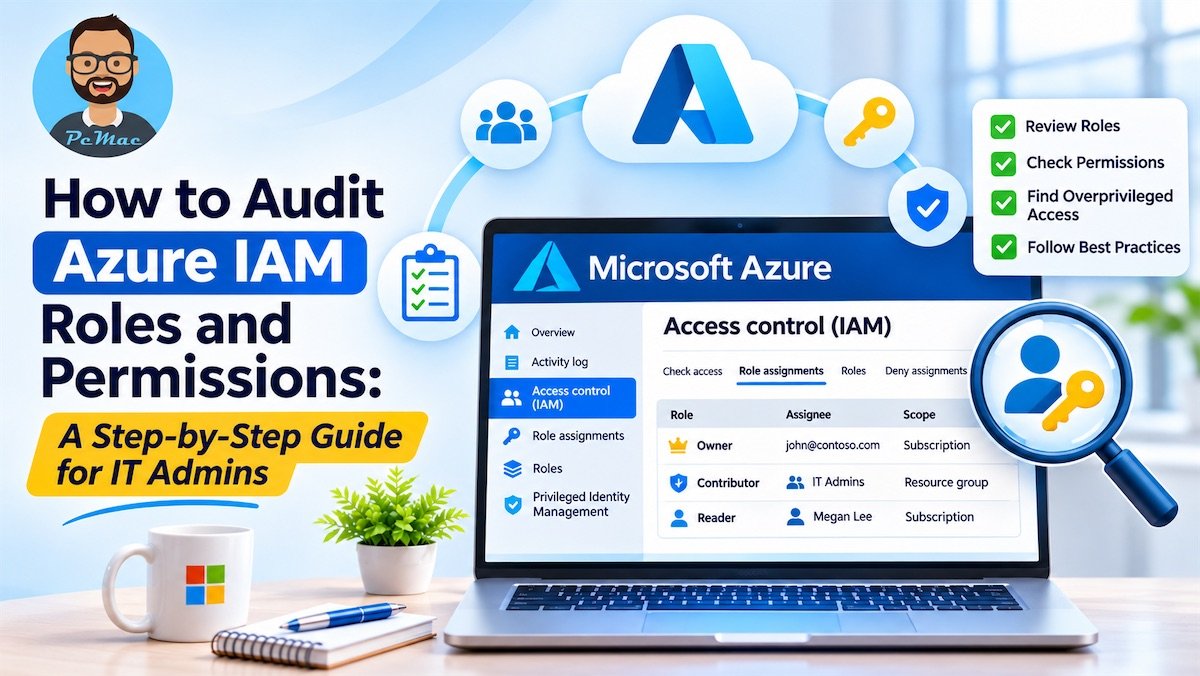
However, as organizations grow, cloud environments often accumulate unnecessary permissions, outdated role assignments, and excessive administrative privileges. Employees change departments, contractors complete projects, and applications retain access long after their original purpose has ended.
These issues create privilege creep and increase the risk of unauthorized access, accidental configuration changes, and cloud security breaches.
Regularly auditing Azure IAM roles and permissions helps IT administrators identify excessive access, remove unnecessary privileges, and enforce the principle of least privilege.
In this step-by-step guide, you’ll learn how to audit Azure RBAC role assignments, review privileged access, investigate custom roles, identify excessive permissions, and improve access governance using built-in Microsoft Azure tools.
Why Regular Azure IAM Audits Are Important
Azure RBAC provides a flexible way to control access to cloud resources. However, without regular reviews, organizations can gradually lose visibility into who has access to critical infrastructure.
This is commonly known as security drift or privilege creep.
- For example, an employee may initially receive the Contributor role to manage a development environment. After completing the project, the employee moves to another department, but the original permissions remain active.
Similarly, an external contractor may retain access to a production subscription after completing a temporary assignment.
These situations can create unnecessary security risks.
Key Benefits of Auditing Azure IAM Roles
Regular Azure IAM audits help organizations:
- Enforce least privilege: Ensure users receive only the permissions required for their responsibilities.
- Identify excessive permissions: Detect users with unnecessary Owner, Contributor, or other privileged roles.
- Remove stale access: Identify inactive users, former employees, and outdated contractor assignments.
- Protect privileged accounts: Review administrative access and reduce permanent standing privileges.
- Secure application identities: Audit service principals and managed identities with access to Azure resources.
- Improve compliance: Maintain evidence of access reviews and permission management for relevant security and regulatory frameworks.
An effective Azure RBAC audit should examine both the permissions assigned and the scope at which those permissions apply.
Understanding Azure IAM and Role-Based Access Control (RBAC)
Before performing an audit, it’s important to understand how Azure IAM works.
Azure Role-Based Access Control (Azure RBAC) determines what actions a security principal can perform on Azure resources.
A role assignment generally consists of three components:
- Security principal: The identity receiving access, such as a user, group, service principal, or managed identity.
- Role definition: The permissions granted, such as Reader, Contributor, or Owner.
- Scope: The Azure resource or collection of resources where the permissions apply.
Common Azure RBAC Roles
The following built-in roles are particularly important during an IAM security audit.
| Azure role | Permissions |
|---|---|
| Owner | Full resource management access, including assigning Azure RBAC roles |
| Contributor | Manage resources but cannot assign Azure RBAC roles |
| Reader | View Azure resources without making changes |
| User Access Administrator | Manage access to Azure resources |
| Role Based Access Control Administrator | Manage Azure RBAC role assignments |
Owner, User Access Administrator, and Role Based Access Control Administrator deserve particular attention because they can grant access to other identities.
Contributor also requires careful review because it provides broad resource management permissions, even though it cannot independently assign Azure RBAC roles.
Important: Azure RBAC roles and Microsoft Entra ID directory roles are different permission systems. Azure RBAC controls access to Azure resources, while Microsoft Entra roles control administrative access to directory services such as users, groups, and applications.
This guide focuses primarily on Azure resource permissions.
Step-by-Step Guide to Auditing Azure IAM Roles and Permissions
You can perform an Azure IAM audit directly through the Azure portal without relying entirely on external security tools.
Follow these steps to review role assignments and identify excessive permissions.
Step 1: Access Azure Portal and Navigate to Access Control (IAM)
Start by signing in to the Microsoft Azure portal:
Use an account with the appropriate permissions to view Azure resource role assignments. A Reader role may be sufficient for viewing access information at the relevant scope; broader administrative permissions are needed to modify assignments.
Next:
- Open the Azure portal.
- Navigate to Management Groups or Subscriptions.
- Select the management group or subscription you want to audit.
- Open Access control (IAM).
- Select the Role assignments tab.
You can also perform the same review at resource group and individual resource levels.
For a comprehensive audit, start at the management group or subscription level and then investigate lower-level scopes.
Remember that role assignments can exist at multiple scopes, and permissions inherited from a parent scope can affect access to child resources.
Step 2: Review Existing Azure RBAC Role Assignments
The Role assignments tab displays identities that have been granted access to the selected Azure scope.
Review the following identity types:
- Individual users.
- Microsoft Entra security groups.
- Service principals.
- Managed identities.
Pay particular attention to privileged assignments, especially:
- Owner.
- Contributor.
- User Access Administrator.
- Role Based Access Control Administrator.
For each assignment, examine:
- Who received the permission?
- Which role was assigned?
- At what scope was the role assigned?
- Is the assignment inherited from a parent scope?
- Is the permission still required?
- Is the assignment permanent or time-limited?
Look for These Warning Signs
During your review, investigate:
- Users with Owner access across entire subscriptions.
- Contractors with permanent administrative permissions.
- Former employees who still have active assignments.
- Service principals with unnecessary administrative access.
- Direct user assignments that could be managed through security groups.
- Broad permissions assigned at management group or subscription scope.
Best practice: Prefer assigning permissions at the smallest scope necessary. For example, if a developer only needs access to one resource group, avoid granting Contributor access across the entire subscription.
Step 3: Audit Privileged Access Using Microsoft Entra Privileged Identity Management (PIM)
Permanent administrative permissions increase the potential impact of compromised accounts.
Microsoft Entra Privileged Identity Management (PIM) helps organizations manage privileged access to Azure resources using just-in-time access and time-bound role assignments.
Instead of keeping every administrator permanently assigned to a privileged role, you can configure users as eligible for access and require them to activate the role when needed.
How to Review Azure Resource Roles in PIM
- Sign in to the Microsoft Entra admin center.
- Open ID Governance > Privileged Identity Management.
- Select Azure resources.
- Choose the relevant management group or subscription.
- Open Assignments.
- Review active and eligible assignments.
- Examine assignment duration, activation requirements, and audit history.
What Should You Look For?
- Permanent Owner assignments.
- Users with unnecessary administrative privileges.
- Eligible assignments that are no longer required.
- Excessive activation durations.
- Missing business justification requirements.
- Administrative assignments without appropriate approval controls.
Where appropriate, use PIM to implement:
- Just-in-time administrative access.
- Time-limited role assignments.
- MFA during role activation.
- Approval workflows.
- Business justification requirements.
- Notifications for privileged role activation.
Licensing note: Microsoft Entra PIM for Azure resource roles requires an applicable Microsoft Entra ID P2 or Microsoft Entra ID Governance entitlement. Verify current licensing requirements before implementing these capabilities.
PIM helps reduce permanent privileged access and provides better visibility into administrative activity.
Step 4: Audit Custom Azure RBAC Roles
Built-in Azure roles cover many common administrative requirements. However, organizations sometimes create custom roles to support specific operational tasks.
Custom roles can provide more granular access, but poorly designed definitions may grant unnecessary permissions.
For example, a custom role created to manage virtual machines might accidentally include permissions for unrelated Azure services.
How to Review Custom Roles
- Open the Azure portal.
- Navigate to the relevant subscription or management group.
- Open Access control (IAM).
- Select the Roles tab.
- Filter for custom roles.
- Open each custom role definition.
- Review its permissions and assignable scopes.
Pay particular attention to the following permission properties:
- Actions: Management-plane operations that the role allows.
- NotActions: Management-plane operations excluded from the role’s allowed Actions.
- DataActions: Data-plane operations that the role allows.
- NotDataActions: Data-plane operations excluded from allowed DataActions.
Look for broad wildcard permissions such as * and unnecessary access to sensitive operations.
For example, a role that only needs to read virtual machine information should not receive unrestricted management permissions across unrelated resource providers.
Also review the role’s assignable scopes to ensure it is not available more broadly than necessary.
Best practice: Use built-in roles whenever they meet your requirements. Create custom roles only when you need permissions that existing roles do not provide.
Step 5: Identify and Remove Unnecessary Role Assignments
The purpose of an Azure IAM audit is not simply to identify excessive permissions. Administrators must also remediate the findings.
After reviewing assignments, prepare a list of permissions that are no longer required.
Common examples include:
- Former employees with active Azure permissions.
- Contractors whose projects have ended.
- Duplicate role assignments.
- Unnecessary subscription-level Contributor permissions.
- Service principals associated with retired applications.
- Permanent administrative assignments that should be eligible or time-limited.
Recommended Remediation Process
1. Validate the assignment
- Confirm with the resource owner or relevant team that the permission is no longer required.
2. Identify dependencies
- Check whether applications, automation workflows, or production services depend on the identity.
3. Remove unnecessary access
- Open Access control (IAM), select the relevant role assignment, and remove it when authorized.
4. Replace broad permissions
- Where possible, assign a narrower built-in or custom role at a smaller scope.
5. Use groups for manageable access
- For appropriate human-user assignments, consider using Microsoft Entra security groups rather than maintaining numerous individual role assignments.
6. Document the changes
- Record the original assignment, reason for removal, approval, and completion date.
Important: Never delete an application identity or remove its permissions simply because it appears unfamiliar. First verify its ownership and dependencies to avoid disrupting production workloads.
Best Practices for Ongoing Azure IAM Management
- A one-time Azure RBAC audit is not enough to maintain a secure cloud environment.
- Organizations should establish a recurring access governance process to identify unnecessary permissions and prevent privilege creep.
Here are some important best practices.
1. Follow the Principle of Least Privilege
- Grant users and applications only the permissions necessary to perform their assigned tasks.
- Avoid assigning Owner or Contributor roles when a narrower role can accomplish the same objective.
2. Use Microsoft Entra Access Reviews
- Microsoft Entra Access Reviews help organizations periodically evaluate whether users and groups still require access to resources.
- Use access reviews to recertify privileged assignments, review guest access, and remove unnecessary permissions.
- For Azure resource roles, review the applicable PIM access review capabilities and licensing requirements.
3. Implement Just-In-Time Administrative Access
- Use Privileged Identity Management to reduce permanent administrative access.
- Require eligible administrators to activate privileged roles only when necessary, with appropriate MFA, approval, and time limits.
4. Monitor Service Principals and Managed Identities
- Applications and automation services frequently require Azure permissions.
- Review their role assignments, ownership, purpose, and scope regularly.
- Remove obsolete permissions when applications are retired or their responsibilities change.
5. Monitor Administrative Activity
Use Azure Activity Logs and relevant Microsoft Entra audit logs to investigate changes to role assignments and other administrative operations.
Monitor activities such as:
- Role assignment creation.
- Role assignment deletion.
- Changes to privileged access.
- Unexpected permission modifications.
- Administrative activity involving critical subscriptions.
6. Review Azure RBAC Assignments Regularly
Establish a recurring audit schedule based on your organization’s risk profile.
For example:
- Monthly: Review highly privileged role assignments.
- Quarterly: Review general user and application access.
- During employee departures: Revoke access that is no longer required.
- After major infrastructure changes: Review affected permissions and scopes.
7. Maintain an IAM Audit Record
Maintain documentation of role assignments, review results, remediation actions, and approvals.
This makes future audits easier and provides useful evidence for internal governance and applicable compliance requirements.
Frequently Asked Questions About Azure IAM Roles and Permissions
1. What is Azure IAM?
- Azure Identity and Access Management (IAM) provides tools for controlling access to Azure resources. Azure Role-Based Access Control (RBAC) allows administrators to assign permissions to users, groups, service principals, and managed identities at different resource scopes.
2. How do I check who has access to my Azure subscription?
- Sign in to the Azure portal, open the relevant subscription, navigate to Access control (IAM), and select Role assignments. You can review assigned users, groups, service principals, managed identities, and their respective roles.
3. What is the difference between Owner and Contributor in Azure?
- The Owner role provides full access to manage Azure resources and assign Azure RBAC roles. Contributor provides broad resource management access but cannot assign Azure RBAC roles.
4. How often should Azure IAM roles be audited?
- A common starting point is to review privileged access monthly and perform a broader role assignment review quarterly. Organizations with sensitive workloads or strict compliance requirements may need more frequent reviews.
5. What is Microsoft Entra Privileged Identity Management?
- Microsoft Entra Privileged Identity Management (PIM) helps organizations manage privileged access using eligible assignments, just-in-time activation, time limits, approvals, and other access controls. It supports privileged access management for Azure resources as well as Microsoft Entra roles.
6. What is the principle of least privilege in Azure?
- The principle of least privilege means granting users, applications, and services only the permissions they need to perform their assigned tasks. It also involves restricting access to the smallest necessary scope and limiting the duration of privileged permissions.
7. Can Azure RBAC permissions be assigned to groups?
- Yes. Azure RBAC roles can be assigned to Microsoft Entra security groups. Members of those groups inherit the permissions granted through the role assignment, making access management easier for teams and departments.
8. What is the difference between Azure RBAC and Microsoft Entra roles?
- Azure RBAC controls access to Azure resources such as virtual machines, storage accounts, and subscriptions. Microsoft Entra roles control administrative permissions for directory services, including users, groups, applications, and identity management.
Conclusion
Auditing Azure IAM roles and permissions is an essential part of maintaining a secure Microsoft Azure environment.
As cloud infrastructure grows, unnecessary role assignments, excessive administrative permissions, and outdated application access can gradually increase the organization’s attack surface.
By regularly reviewing Azure RBAC assignments, investigating privileged access through Microsoft Entra PIM, auditing custom roles, and removing unnecessary permissions, IT administrators can significantly improve cloud access security.
The most effective approach is to combine the principle of least privilege with regular access reviews, just-in-time administrative access, and continuous monitoring.
Make Azure IAM auditing a regular part of your cloud security operations to keep permissions under control and protect your organization’s critical resources.