How to Migrate an On-Premises File Server to Azure Files: A Step-by-Step Guide
Many organizations still rely on on-premises file servers to store shared documents, departmental files, application data, and business-critical information. Although these servers can be reliable, maintaining them requires hardware, storage capacity, backup infrastructure, security updates, and ongoing administrative effort.
Microsoft Azure Files provides a cloud-based alternative that allows organizations to store and share files through managed file shares. IT teams can migrate existing file server data to Azure, reduce dependence on physical storage infrastructure, and provide secure access to files from supported clients and applications.
However, migrating a file server involves more than copying folders to the cloud. Administrators must plan storage capacity, preserve file permissions, configure authentication, establish network connectivity, validate data integrity, and coordinate the final cutover.
In this guide, we explain how to migrate an on-premises file server to Azure Files using a practical, step-by-step approach. We also cover Azure File Sync, Robocopy, security configuration, testing, and common migration mistakes to avoid.
Whether you manage a small Windows Server file share or a large enterprise file server environment, this guide will help you plan and execute a successful migration.
What Is Azure Files?
Azure Files is a fully managed cloud file-sharing service in Microsoft Azure. It supports Server Message Block (SMB) file shares and Network File System (NFS) file shares, subject to their respective configuration and compatibility requirements.
For organizations migrating Windows file servers, Azure Files SMB shares are particularly useful because they support familiar file-sharing workflows and can integrate with supported identity-based authentication methods.
Key benefits of Azure Files
- Reduced infrastructure maintenance: Microsoft manages the underlying storage infrastructure.
- Scalable storage: Select an appropriate storage configuration for your workload and growth requirements.
- Flexible access: Connect supported clients and applications through properly configured network paths.
- Access control: Use supported identity-based authentication and file-level permissions.
- Data protection: Integrate with Azure Backup and other appropriate recovery strategies.
- Hybrid capabilities: Use Azure File Sync to maintain local file server access while synchronizing data with Azure Files.
- Business continuity: Design redundancy and recovery strategies around application requirements.
Azure Files is not automatically a complete replacement for every Windows file server feature. Before migrating, assess dependencies on local applications, specialized NTFS features, file locking, latency-sensitive workloads, and other server-specific functionality.
Microsoft reference: https://learn.microsoft.com/en-us/azure/storage/files/storage-files-planning
Azure Files vs. Azure File Sync: Which Should You Choose?
Before beginning the migration, decide whether you want to move file access entirely to the cloud or maintain a local Windows file server.
Option 1: Migrate directly to Azure Files
In this model, you copy the existing file shares to Azure Files and transition users and applications to the cloud-hosted shares.
This approach is suitable when users can access Azure over a reliable network connection and do not require a local file server for day-to-day access.
Choose this option when:
- You want to retire an existing file server.
- Your users have reliable connectivity to Azure.
- Your applications support Azure Files.
- You want to reduce on-premises storage infrastructure.
Option 2: Use Azure File Sync
Azure File Sync synchronizes files between a Windows Server and an Azure file share. It supports hybrid deployments and optional cloud tiering, which helps maintain a smaller local cache while keeping the broader file namespace available.
Choose this option when:
- Branch offices need local file access.
- Users depend on a Windows file server.
- You need a gradual migration rather than an immediate cutover.
- Frequently accessed files should remain cached locally.
- You want to extend an existing file server environment into Azure.
Azure File Sync is not the same as a direct cloud-only migration. It introduces a synchronization architecture and requires ongoing management of the Windows Server, sync groups, and related components.
Microsoft reference: https://learn.microsoft.com/en-us/azure/storage/files/windows-server-to-azure-files
Prerequisites for Migrating an On-Premises File Server
Complete the following preparation tasks before transferring production data.
1. Inventory your existing file server
Document:
- Total storage used and available capacity.
- Number and size of files and folders.
- Existing SMB shares and share paths.
- NTFS permissions and ownership.
- Active Directory users and security groups.
- Applications that access the file server.
- File types, long paths, and special file attributes.
- Current backup and recovery procedures.
Use this inventory to identify dependencies and estimate the time required for the migration.
2. Choose an Azure region and storage configuration
Select a region that meets your latency, availability, data residency, and compliance requirements.
Choose an appropriate storage account and file share configuration based on capacity, performance, redundancy, and cost.
Azure Files offers different storage tiers and performance options. Validate current regional availability, share limits, transaction costs, and performance requirements before deployment.
3. Plan network connectivity
Ensure that the migration host and end-user clients can reach the Azure file share using the intended network architecture.
Azure Files SMB commonly uses TCP port 445. Some networks and internet service providers block this port. For production environments, evaluate private endpoints, VPN connectivity, or other supported secure network designs rather than assuming direct internet SMB access will work.
4. Plan authentication and permissions
Choose the identity source that suits your environment. Options for SMB identity-based authentication include on-premises Active Directory Domain Services (AD DS), Microsoft Entra Domain Services, and Microsoft Entra Kerberos, subject to their requirements.
Plan both share-level permissions and directory/file-level permissions.
5. Create a rollback plan
Keep the original file server and its data available until the migration has been validated and accepted. Define who can approve the cutover, how changes will be handled, and how the organization can return to the previous environment if necessary.
Step 1: Assess and Plan the Migration
Start by determining which file shares should move to Azure and how they should be organized.
For a small environment, a one-to-one mapping between existing shares and Azure file shares may be sufficient. Larger environments may benefit from grouping related shares based on business units, access requirements, application dependencies, or data classification.
Estimate storage and transfer requirements
Calculate the total data volume, the number of files, the expected rate of daily changes, and the available network bandwidth.
For example, migrating 2 TB of data over a constrained network can take significantly longer than migrating the same amount over a high-throughput connection. File count also matters: millions of small files can take longer to transfer than a smaller number of large files with the same total capacity.
Consider using Azure Migrate file share assessments where appropriate to evaluate readiness, sizing, and cost.
Actionable tip: Create a migration worksheet containing source paths, target shares, data owners, permission requirements, migration priority, validation criteria, and planned cutover dates.
Microsoft reference: https://learn.microsoft.com/en-us/azure/migrate/create-file-share-assessment
Step 2: Create an Azure Storage Account and File Share
Once the assessment is complete, create the Azure resources required for the migration.
Create the storage account
- Sign in to the Azure portal at https://portal.azure.com/.
- Search for Storage accounts.
- Select Create.
- Choose the appropriate subscription and resource group.
- Select a supported region and storage configuration.
- Configure redundancy, networking, security, and other required settings.
- Review the configuration and create the storage account.
Use an organization-approved naming convention and resource tags to simplify management and cost reporting.
Create an Azure file share
- Open the new storage account.
- Navigate to Data storage → File shares.
- Select + File share.
- Enter a descriptive share name.
- Configure the required tier and capacity-related settings where applicable.
- Create the file share.
Create additional shares if your migration plan requires separate departmental or application shares.
Configure networking
For production deployments, review public network access settings and consider a private endpoint with appropriate private DNS configuration.
Ensure that your migration host can resolve the correct endpoint and reach the file share through the intended network path.
Important: A storage account key can provide broad access to storage resources. Prefer identity-based authentication for SMB access when supported and configured correctly. Protect any administrative credentials required for migration and avoid embedding secrets in scripts.
Microsoft reference: https://learn.microsoft.com/en-us/azure/storage/files/storage-files-planning
Step 3: Prepare the On-Premises File Server
Before transferring files, clean up the source environment and confirm that the migration host has sufficient access.
Review the source data
- Identify obsolete files and folders according to your retention policy.
- Resolve duplicate or unnecessary data where appropriate.
- Identify files currently in use by critical applications.
- Check long paths, unsupported characters, and special file attributes.
- Document existing share permissions and NTFS access control lists (ACLs).
- Verify that the source data is backed up.
Do not delete data simply because it appears old. Obtain approval from the relevant data owners before removing business information.
Check file permissions
Windows file shares generally use two permission layers:
- Share permissions: Control access through the shared folder.
- NTFS permissions: Control access to files and directories.
Azure Files supports share-level authorization and file/directory-level permissions for supported SMB configurations. To preserve existing Windows ACLs, configure the required identity-based authentication and ensure the migration process has the necessary permissions.
Test a representative set of users and groups before transferring the entire dataset.
Prepare the migration host
Use a supported Windows machine or server with:
- Access to the on-premises source.
- Network connectivity to Azure Files.
- Appropriate administrative permissions.
- Sufficient processing capacity and network bandwidth.
- A location for migration logs and reports.
For large migrations, perform a pilot transfer before estimating the final migration window.
Step 4: Configure Authentication and Access Permissions
A successful file copy does not guarantee that users will be able to access the migrated files. Authentication and authorization must be configured correctly.
Enable identity-based authentication
For SMB file shares, choose the appropriate identity source for your organization:
- On-premises Active Directory Domain Services.
- Microsoft Entra Domain Services.
- Microsoft Entra Kerberos.
These options have different prerequisites. Follow the relevant Microsoft deployment instructions rather than enabling an identity source without checking compatibility.
For existing domain-based environments, AD DS authentication can help users continue accessing Azure Files with their established identities.
Assign share-level permissions
Assign appropriate Azure RBAC data roles at the file-share scope according to the access requirements.
For example, users who need to modify file contents require suitable data permissions, while administrative access should be limited to authorized personnel.
Configure file and directory permissions
Apply the required Windows ACLs to the files and directories. Verify that the target ACLs reference valid identities and that the migration method preserves the permission information required by the organization.
Best practice: Test with an ordinary user account, a departmental security group, and an administrator account. Confirm that each can perform only the actions intended by the permission design.
Microsoft reference: https://learn.microsoft.com/en-us/azure/storage/files/storage-files-identity-ad-ds-overview
Step 5: Migrate File Data Using Robocopy
For many Windows-based SMB file server migrations, Robocopy is a practical tool because it supports incremental copying, logging, multithreading, and mirroring.
This example assumes that the source is an accessible Windows file share and that the destination Azure file share has been mounted as a drive on the migration host.
Mount the Azure file share
Follow Microsoft’s instructions to connect the Azure file share to the migration host using the intended authentication method.
For example, assume:
- Source:
D:\SharedData - Destination:
Z:\ - Log file:
C:\MigrationLogs\robocopy.log
The drive letters and paths are examples. Replace them with the actual paths in your environment.
Run the initial copy
Open an elevated Command Prompt on the migration host and run:
robocopy "D:\SharedData" "Z:\" /E /COPY:DAT /DCOPY:DAT /Z /MT:16 /R:2 /W:5 /TEE /LOG:"C:\MigrationLogs\robocopy.log"This example copies files and directories, including empty directories, and records file data, attributes, and timestamps.
Important details:
/Ecopies subdirectories, including empty ones./COPY:DATcopies data, attributes, and timestamps./DCOPY:DATcopies directory data, attributes, and timestamps./Zenables restartable copy mode./MT:16enables multithreaded copying./R:2limits retries to two./W:5waits five seconds between retries./TEEdisplays output while writing it to the log.
The command is an illustrative starting point, not a universal migration configuration. Test it with representative data before using it in production.
Preserve Windows ACLs when required
If the migration must preserve NTFS security information, use the appropriate Robocopy security options and validate the destination permissions. For example, Microsoft’s migration guidance includes /COPY:DATSO and /DCOPY:DAT for suitable SMB migration scenarios.
A command with these switches might look like:
robocopy "D:\SharedData" "Z:\" /E /COPY:DATSO /DCOPY:DAT /Z /MT:16 /R:2 /W:5 /TEE /LOG:"C:\MigrationLogs\robocopy-acl.log"This approach requires the appropriate privileges and a correctly configured destination. Validate owner and ACL preservation in a pilot before relying on it for production.
Important warning about mirroring
Microsoft also documents /MIR for migration and cutover scenarios. However, /MIR mirrors the source to the destination and can delete destination files that do not exist in the source.
Do not add /MIR casually. Confirm the target path, backup status, and intended deletion behavior before using it.
Perform incremental copies
After the initial transfer, rerun the selected copy command to transfer changes made since the previous run.
Repeat this process as necessary to reduce the amount of data that must be copied during the final cutover.
Monitor the logs for failed files, access-denied errors, skipped items, and other warnings. Do not assume the migration succeeded merely because Robocopy finished running.
Microsoft reference: https://learn.microsoft.com/en-us/azure/storage/files/storage-files-migration-robocopy
Step 6: Validate the Migrated Data
Data validation is one of the most important parts of a file server migration.
Before switching users to Azure Files, confirm that the destination contains the expected data and that the required permissions and application workflows work correctly.
Validate file and folder contents
Check the following:
- Total file and directory counts.
- Expected directory structure.
- File sizes and timestamps where applicable.
- Sample file contents or hashes for critical data.
- Robocopy logs and exit codes.
- Files that could not be copied.
- File and directory ACLs.
- Access from representative user accounts.
Robocopy uses several nonzero exit codes to report outcomes that may still be successful. Review its exit-code documentation and logs rather than treating every nonzero code as a failure.
Test application compatibility
If business applications use the existing file shares, test their functionality against Azure Files before cutover.
Verify file locking, concurrent access, path dependencies, performance, and any application-specific requirements.
Test access from user devices
Confirm that supported client devices can reach the Azure file share over the intended network. Check DNS, SMB connectivity, authentication, and the required permissions.
Actionable tip: Maintain a validation report containing test results, unresolved exceptions, data-owner approvals, and the decision to proceed with cutover.
Step 7: Cut Over Users and Applications to Azure Files
Once the initial copy and validation are complete, prepare the final transition.
A controlled cutover minimizes the risk of missing data and inconsistent file versions.
Recommended cutover procedure
- Announce the migration window to users and application owners.
- Temporarily prevent changes to the source share using an approved maintenance process.
- Stop or pause applications that write to the affected shares.
- Run the final incremental copy.
- Review logs and resolve critical errors.
- Validate important files and permissions.
- Update drive mappings, login scripts, Group Policy settings, application paths, or other client configurations.
- Enable access to the Azure file shares.
- Test user access and application functionality.
- Monitor the environment closely after cutover.
Avoid allowing users to write independently to both the old and new shares during the transition. This can create divergent copies and data reconciliation problems.
Keep a rollback plan
Do not immediately delete or repurpose the original file server.
Retain the source data for an approved period and define the conditions under which the organization would return to the previous service.
If users have already modified files in Azure Files, a rollback must account for those new changes. Simply pointing users back to the old server could lose updates.
Step 8: Optimize, Monitor, and Protect Azure Files
After the migration, review performance, security, cost, and recovery arrangements.
Monitor performance
Observe user experience and storage performance under normal workloads.
Investigate slow directory listings, high latency, network bottlenecks, and application timeouts. File-heavy workloads may require different tuning from workloads that primarily transfer large files.
Configure backups and recovery
Use Azure Backup or an appropriate supported data protection solution to meet your organization’s recovery point objectives (RPOs) and recovery time objectives (RTOs).
Configure retention and protection settings, monitor backup jobs, and periodically test file recovery.
Improve security
- Prefer identity-based authentication over routine use of storage account keys.
- Restrict network access to approved clients and networks.
- Review share-level RBAC and file/directory ACLs.
- Store secrets securely and rotate them according to policy.
- Monitor storage access and relevant configuration changes.
- Apply data classification and retention requirements.
Review costs
Monitor storage capacity, transactions, redundancy, data transfer, backup usage, and any Azure File Sync infrastructure costs.
Choose the storage and performance configuration that fits the actual workload rather than assuming that the lowest-cost tier will meet every performance requirement.
Common Azure Files Migration Mistakes to Avoid
Ignoring NTFS permissions
Copying files without validating permissions can expose sensitive data or prevent users from accessing it. Test identity configuration and ACL preservation before cutover.
Using the wrong migration tool
Choose the transfer method based on the source, target protocol, file fidelity requirements, and scale. Robocopy is suitable for many SMB migrations, while other scenarios may call for Azure Storage Mover or another supported migration approach.
Forgetting about SMB connectivity
A correctly created file share can still be unreachable if TCP port 445 is blocked or the network route is incorrect. Test connectivity before beginning a large transfer.
Skipping incremental copies
A long-running initial migration can become outdated while users continue changing files. Plan incremental transfers and a final write freeze to minimize downtime and data loss.
Using /MIR without understanding its impact
Mirroring can delete destination files that are absent from the source. Test the command and verify the destination before running it.
Failing to test application compatibility
Some applications rely on server-local paths, particular SMB behavior, or other features that may not work identically after migration. Validate the actual workload.
Decommissioning the old server too early
Keep a controlled rollback path until the new environment has passed its acceptance criteria and the business has approved decommissioning.
Frequently Asked Questions (FAQs)
1. Can I migrate a Windows file server directly to Azure Files?
Yes. Many Windows file servers can migrate their SMB shares directly to Azure Files. The migration method depends on data volume, network capacity, permissions, and workload compatibility. Azure File Sync is an alternative when local Windows Server access must continue.
2. What is the best tool for migrating files to Azure Files?
Robocopy is a common choice for Windows-based SMB migrations because it supports incremental copying, multithreading, logging, and options for preserving file metadata and security information. Azure Storage Mover may be appropriate for other supported migration scenarios. Select a tool based on the source, target, and required fidelity.
3. Will NTFS permissions be preserved during migration?
They can be preserved when the migration method, destination configuration, privileges, and identity setup support the required security information. Validate ACLs in a pilot migration and confirm that the identities referenced by those permissions are available and correctly configured.
4. Do users need to change their Windows credentials after migration?
Not necessarily. With a supported identity-based SMB configuration, users may continue to authenticate using their existing organizational identities. The required setup depends on the selected identity source and how the environment is configured.
5. Is Azure File Sync required to use Azure Files?
No. Azure Files can be used directly without Azure File Sync. Azure File Sync is useful when you want to synchronize an on-premises Windows file server with Azure Files and optionally use cloud tiering.
6. How long does an Azure Files migration take?
The duration depends on total data volume, file count, file sizes, network bandwidth, storage performance, and the rate of changes on the source server. Perform a pilot copy and measure actual throughput before finalizing the migration window.
7. Can I migrate files without downtime?
You can often minimize downtime by performing an initial copy while users continue working, followed by incremental copies and a final cutover. A short maintenance window is usually advisable to stop writes, synchronize the last changes, validate the result, and switch users to the new share.
8. How can I secure Azure Files after migration?
Use identity-based authentication where supported, configure share-level and file-level permissions, restrict network access, protect secrets, monitor activity, and establish appropriate backup and recovery policies. Review your security requirements regularly.
9. Should I use Azure Files or Azure File Sync for a branch office?
Azure Files may be suitable when clients can access the cloud share reliably. Azure File Sync can be preferable when the branch office needs local file caching and access through a Windows Server. Evaluate latency, connectivity, cache requirements, and operational overhead before choosing.
Conclusion
Migrating an on-premises file server to Azure Files can help organizations modernize their storage infrastructure, improve flexibility, and reduce dependence on physical file servers.
A successful migration requires more than transferring data. IT administrators must assess the source environment, create the right Azure storage resources, configure authentication, preserve permissions, validate files, coordinate cutover, and establish ongoing monitoring and recovery.
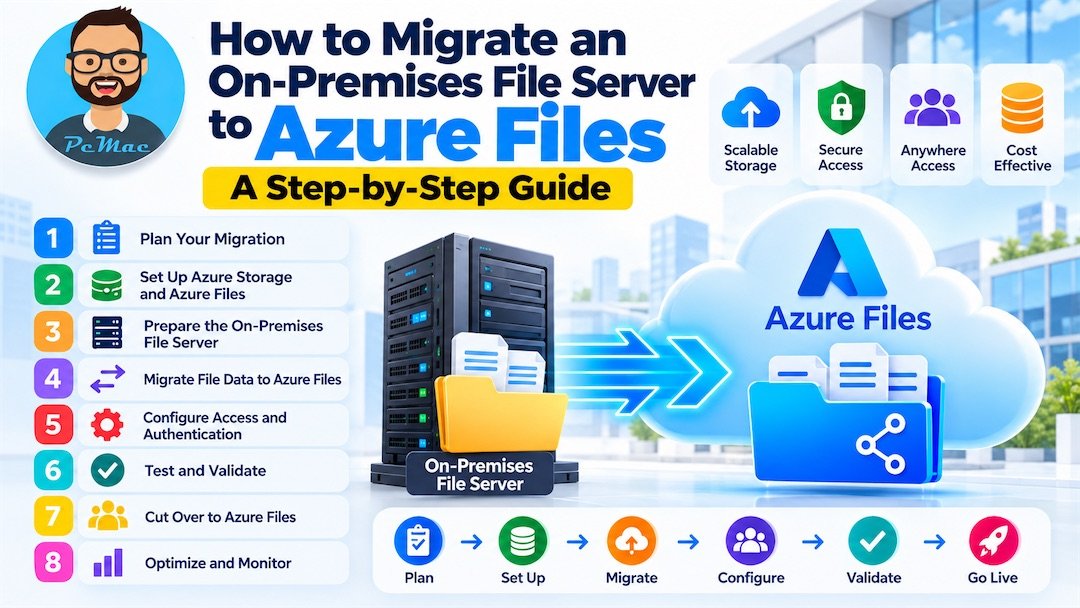
By following these eight steps, you can approach your Azure Files migration in a structured and controlled manner:
- Assess and plan the migration.
- Create the Azure storage account and file share.
- Prepare the source file server.
- Configure authentication and permissions.
- Transfer data using an appropriate migration tool.
- Validate files and access controls.
- Cut over users and applications.
- Optimize, monitor, and protect the new environment.
Start with a pilot migration, document your validation criteria, and keep a tested rollback plan before moving production workloads.
At PcMac, our goal is to help IT professionals simplify Microsoft Azure administration and cloud migrations. Use this guide as a practical reference when planning your next file server modernization project.
Official Microsoft Documentation
For additional technical details, consult these Microsoft resources:
- Plan an Azure Files deployment
- Replace or extend Windows file servers with Azure Files and Azure File Sync
- Migrate to Azure Files using Robocopy
- Azure Files identity-based authentication overview
- On-premises AD DS authentication for Azure Files
- Azure File Sync documentation
- Azure Migrate file share assessment