How to Repair Corrupted System Files in Windows 11
Windows 11 is generally a stable and reliable operating system, but things can still go wrong. Whether you recently suffered a sudden power outage, experienced a failed software update, or are dealing with inexplicable system crashes, corrupted system files can severely impact your computer’s performance. Fortunately, Microsoft builds powerful diagnostic tools directly into the OS. By learning how to diagnose and repair corrupted system files in Windows 11 using DISM and SFC, you can often fix stubborn system errors without needing to completely wipe and reinstall your operating system.
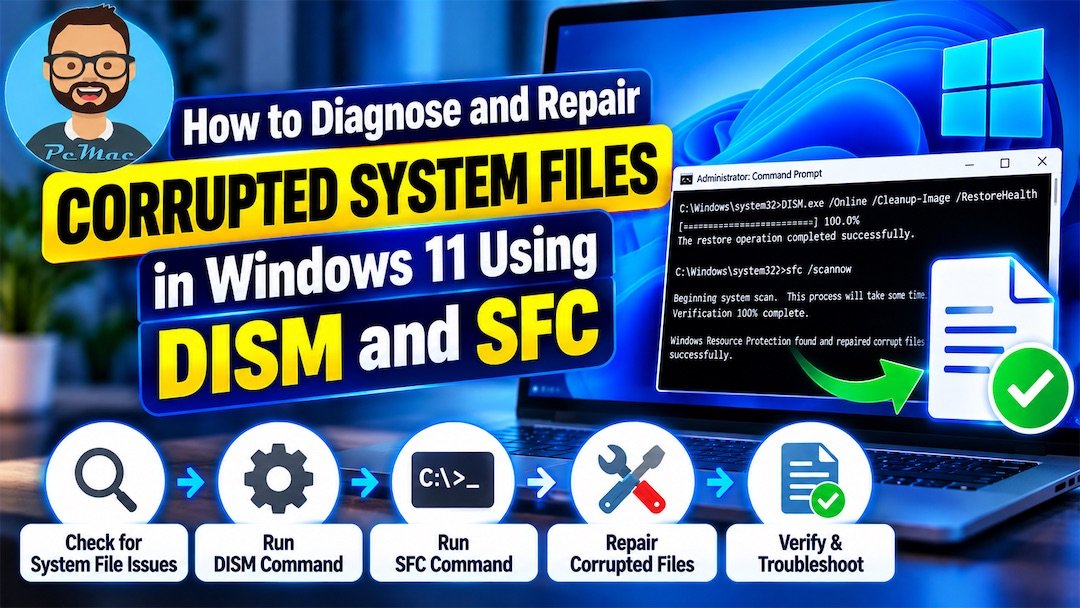
Understanding DISM and SFC
Before diving into the repair process, it helps to understand what these two command-line utilities do and why they work best as a tag team. While both tools scan for and repair system file damage, they operate at different levels of the Windows architecture.
The System File Checker (SFC) is the classic utility most Windows veterans rely on. SFC scans all protected operating system files and replaces incorrect, corrupted, changed, or damaged versions with the correct versions stored in a compressed folder located on the Windows component store.
However, SFC has a major limitation: if the local cache used to replace damaged files is also corrupted, SFC cannot complete its job. That is where Deployment Image Servicing and Management (DISM) comes in. DISM repairs the Windows system image itself, servicing the underlying component store so that SFC has a pristine, healthy pool of files to draw from when performing repairs.
Step-by-Step Guide to Running DISM
You should always run the DISM tool before running SFC. If your local system image is compromised, running SFC alone will yield limited results or error messages.
- Click the Start button on your taskbar.
- Type cmd in the search bar.
- Right-click on Command Prompt in the search results and select Run as administrator.
- If prompted by User Account Control (UAC), click Yes to allow the app to make changes to your device.
- In the Command Prompt window, type the following command and press Enter:
DISM /Online /Cleanup-Image /CheckHealth - Review the output. This command quickly checks for any flagrant corruption in the Windows image without making changes. If it reports that the image is repairable, proceed to the next step. If it says no corruption was found, you can still run the deeper scan as a precaution.
- Type the following command to perform a comprehensive scan and press Enter:
DISM /Online /Cleanup-Image /RestoreHealth - Wait patiently for the process to finish. This can take anywhere from 10 to 30 minutes depending on your system’s drive speed and hardware specifications. Do not close the window while the progress bar is running.
Once DISM completes successfully, it will compare your local component store with official Microsoft update servers, download any necessary fresh files, and replace the corrupted components seamlessly.
Running the System File Checker (SFC)
Now that your underlying system image has been verified and repaired by DISM, you can safely run the System File Checker to scan individual operating system files.
- Keep the Command Prompt open with administrator privileges.
- Type the following command and press Enter:
sfc /scannow - Allow the scan to run. SFC will systematically examine every protected system file on your drive. This usually takes between 5 and 15 minutes.
- Read the resulting message carefully once the scan reaches 100 percent.
Interpreting SFC Scan Results
The System File Checker will output one of a few standard messages upon completion. Knowing what these mean will help you determine your next troubleshooting steps:
- Windows Resource Protection did not find any integrity violations: Your system files are completely healthy. If you are still experiencing PC issues, the problem likely stems from third-party software, faulty hardware, or a bad driver rather than core system file corruption.
- Windows Resource Protection found corrupt files and successfully repaired them: The tool successfully located damaged files and replaced them with healthy cached copies. Restart your computer to finalize the repairs.
- Windows Resource Protection found corrupt files but was unable to fix some of them: This means manual intervention is required. You may need to run DISM again, boot into Safe Mode, or perform an in-place upgrade.
- Windows Resource Protection could not start the repair service: This usually means the Windows Modules Installer service is disabled. You can fix this by opening the Services app, locating Windows Modules Installer, setting its startup type to Manual, and trying the SFC scan again.
Advanced Troubleshooting Tips
In rare instances, standard scans fail to resolve deep-seated system corruption. If DISM and SFC fall short, try these alternative methods to restore stability to your Windows 11 machine.
Boot Into Safe Mode
Third-party background applications, antivirus suites, or active processes can sometimes interfere with file repairs. Booting Windows 11 into Safe Mode loads only the bare minimum drivers and services, reducing interference. Once in Safe Mode, open an elevated Command Prompt and run the DISM and SFC commands again.
Use an Offline DISM Repair Source
If your computer cannot connect to the internet to download healthy files via DISM, or if your local image is severely damaged, you can point DISM to a clean installation source, such as a bootable Windows 11 USB flash drive. By specifying a valid install.wim or install.esd file from an external installer media, DISM can pull replacement files locally without relying on Windows Update.
Official Microsoft resources
Conclusion
Knowing how to diagnose and repair corrupted system files in Windows 11 using DISM and SFC is an essential skill for any PC owner. These built-in utilities save you countless hours of troubleshooting and help you bypass the nuclear option of a complete system reinstallation. By running DISM first to repair the component store, followed by an SFC scan to fix individual system files, you can quickly restore your computer’s health, performance, and stability.