How to Fix the Default Gateway Is Not Available Error in Windows 11: 6 Practical Steps
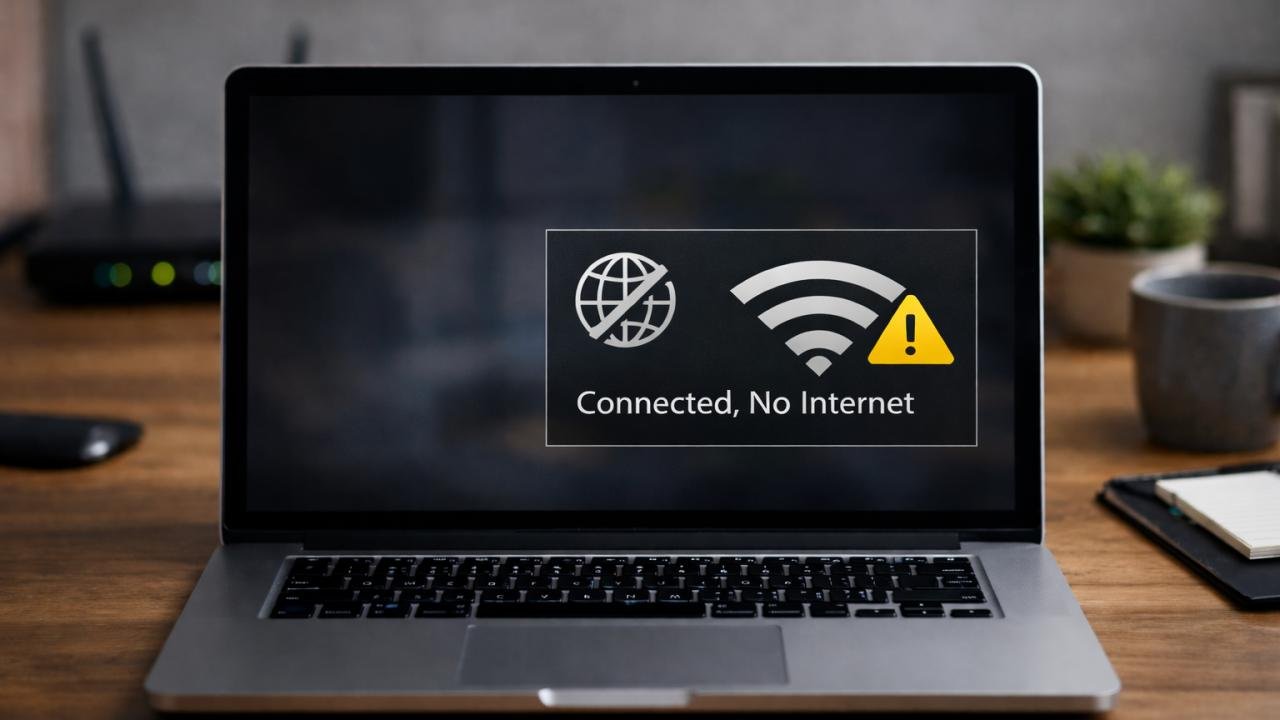
Are you seeing the “Default gateway is not available” error on your Windows 11 PC? This network issue can prevent you from accessing the internet, interrupt Wi-Fi connections, and cause frequent disconnections while browsing or working online.
The error typically indicates a problem with communication between your computer and the network gateway, which is usually your router. Common causes include outdated network adapter drivers, incorrect network settings, wireless interference, power management issues, or temporary router problems.
In this guide, you will learn how to fix the default gateway is not available error in Windows 11 using six practical troubleshooting steps. Follow the solutions in order, starting with the simplest fixes before moving on to advanced network resets.
What Does “Default Gateway Is Not Available” Mean?
A default gateway is the network device, usually a router, that forwards traffic from your local network to other networks, including the internet.
When Windows cannot communicate with the gateway correctly, your PC may lose internet connectivity even though it appears to be connected to Wi-Fi or Ethernet.
Common causes include:
- Temporary router or modem issues.
- Outdated, corrupted, or incompatible network adapter drivers.
- Incorrect TCP/IP configuration.
- Wi-Fi interference or a weak wireless signal.
- Network adapter power-saving settings.
- VPN software or other network configuration conflicts.
Before making advanced changes, check whether other devices can access the internet through the same router. If all devices are affected, the problem may be with the router or internet service provider rather than your Windows PC.
Step 1: Restart Your Router and Computer
Restarting your networking equipment is one of the easiest ways to resolve temporary connectivity problems.
A router may experience temporary software issues, lose its internet connection, or struggle to maintain a stable connection with connected devices.
How to restart your router
- Save your work and close any important applications.
- Shut down your Windows 11 computer.
- Disconnect your router’s power supply.
- If you have a separate modem, power it off as well.
- Wait approximately 30 seconds.
- Power on the modem first, if applicable, and wait for it to reconnect.
- Turn on the router and allow it to finish starting up.
- Restart your computer and reconnect to the network.
Check whether you can browse the internet without receiving the error.
Tip: If other devices are experiencing the same issue, check the router’s status lights and contact your ISP if the connection remains unavailable.
Step 2: Run the Windows 11 Network Troubleshooter
Windows 11 includes network diagnostics that can identify and sometimes automatically fix common connectivity problems.
How to run the troubleshooter
- Press Windows + I to open Settings.
- Select System > Troubleshoot > Other troubleshooters.
- Find Network and Internet or the relevant network troubleshooter.
- Select Run, if available.
- Alternatively, open the Get Help app and search for network connection troubleshooting.
- Follow the diagnostic instructions.
- Restart your connection and test internet access.
The exact troubleshooting options may vary by Windows 11 version.
If the troubleshooter identifies an adapter or configuration issue, apply the recommended fix and check whether the connection stabilizes.
For additional guidance, see Microsoft’s official guide to fixing Wi-Fi connection issues.
Step 3: Update Your Network Adapter Driver
An outdated or incompatible network adapter driver can cause connection drops and communication problems between Windows and your router.
Updating the driver may resolve the issue, especially if it began after a Windows update or driver change.
How to update your network driver
- Right-click the Start button.
- Select Device Manager.
- Expand Network adapters.
- Identify your Wi-Fi or Ethernet adapter.
- Right-click the adapter and select Update driver.
- Select Search automatically for drivers.
- Follow any available instructions and restart your computer.
If Windows does not find a newer driver, check your PC or network adapter manufacturer’s official website for a compatible Windows 11 driver.
What if the problem started after a driver update?
Open Device Manager, right-click your network adapter, and select Properties > Driver. If the option is available, try Roll Back Driver.
Before uninstalling a driver, download a compatible replacement if possible. This is particularly important if your computer has no alternative internet connection.
Step 4: Reset TCP/IP and Renew Your IP Address
Incorrect IP configuration or a temporary network stack issue can interfere with gateway communication.
You can reset common Windows networking components and request a fresh IP configuration from your router using Command Prompt.
Run these network commands
- Open the Start menu.
- Search for
Command Prompt. - Select Run as administrator.
- Approve the administrator prompt.
- Run the following commands one at a time.
netsh winsock reset
netsh int ip reset
ipconfig /release
ipconfig /renew
ipconfig /flushdns
Allow each command to finish before running the next one.
These commands reset Winsock, reset TCP/IP settings, release and renew your IP address, and clear the DNS resolver cache.
Restart your computer after completing the commands, especially if Windows requests a restart.
Important: If your computer uses a manually assigned static IP address, VPN configuration, or organization-managed network settings, consult your administrator before resetting network settings.
Step 5: Change Network Adapter Power Management Settings
Windows may allow certain network adapters to enter a low-power state. On some systems, driver or power-management problems can contribute to unreliable connectivity.
You can test whether changing the adapter’s power settings improves the connection.
How to adjust the settings
- Right-click Start and open Device Manager.
- Expand Network adapters.
- Right-click your Wi-Fi adapter and select Properties.
- Open the Power Management tab, if available.
- Clear the checkbox labeled Allow the computer to turn off this device to save power.
- Select OK.
- Restart your computer and test the connection.
Not every network adapter exposes this setting. If the tab is missing, move to the next step.
If you use a laptop, check its manufacturer’s power management utility and Windows power settings as well. Changing power options may increase battery consumption.
Step 6: Reset Windows 11 Network Settings
If the previous solutions do not resolve the issue, a Windows network reset may help by removing and reinstalling network adapters and restoring networking components to their default settings.
Use this step only after trying the less disruptive fixes.
How to perform a network reset
- Press Windows + I to open Settings.
- Select Network & internet.
- Open Advanced network settings.
- Select Network reset.
- Click Reset now.
- Confirm the action if prompted.
- Allow your computer to restart.
- Reconnect to your Wi-Fi network or Ethernet connection and test internet access.
Important considerations
A network reset can remove or change network adapter configurations. You may need to reconnect to Wi-Fi, reinstall VPN software, or reconfigure virtual network adapters.
If you use Hyper-V, enterprise VPN software, manually configured IP addresses, or other specialized networking tools, record your configuration before resetting.
For additional instructions, consult Microsoft’s official Windows network troubleshooting guide.
Bonus: Check Whether Your Default Gateway Is Reachable
If the error continues, test whether your PC can communicate with the router.
Find your default gateway
- Open Command Prompt.
- Run:
ipconfig- Locate the active Wi-Fi or Ethernet adapter.
- Find the Default Gateway value.
For example, your gateway might be 192.168.1.1. The correct address depends on your network.
Ping the gateway
Replace the example address with the gateway address shown on your PC.
ping 192.168.1.1Interpret the results:
- Replies received: Your computer can communicate with the gateway, so investigate internet access beyond the router, DNS, VPN software, or intermittent connectivity.
- Request timed out: Your PC may be unable to reach the gateway, but firewall rules, wireless isolation, or other network conditions can also affect ping responses.
- Destination host unreachable: Check the local IP configuration, adapter connection, and gateway address.
If other devices can access the internet but your PC cannot, focus on the Windows network adapter and its configuration. If every device is offline, investigate the router or ISP.
Common Mistakes to Avoid
Assigning a random default gateway
Do not enter a guessed gateway IP address. An incorrect address can make your connection worse. Use your router’s configuration or the information supplied by your network administrator.
Disabling security software unnecessarily
Avoid turning off your firewall or antivirus as a first troubleshooting step. Investigate network settings and logs before changing security protections.
Resetting the network too early
Start with a router restart, diagnostics, and driver checks. Network reset can affect VPNs and other specialized configurations.
Ignoring router or ISP problems
If multiple devices cannot access the internet, reinstalling Windows network drivers is unlikely to fix the underlying router or service issue.
Frequently Asked Questions
1. Why does Windows 11 say the default gateway is not available?
The error usually indicates a connectivity problem involving the network adapter, IP configuration, router, or network driver. Wireless interference, power management, and software conflicts can also contribute.
2. Can an outdated network driver cause this error?
Yes. Incompatible or corrupted drivers can cause unstable network connections. Installing a compatible driver from your device manufacturer’s official website may help.
3. Will resetting network settings delete my files?
A standard Windows network reset is designed to reset networking components, not personal documents. However, it can remove network configurations and affect VPN software or virtual adapters.
4. Should I change my default gateway manually?
Usually not. Most home networks receive the gateway address automatically from the router through DHCP. Only change it manually if you know the correct network configuration or your administrator instructs you to do so.
5. What if none of these six steps works?
Test another device on the same network, inspect the gateway using ipconfig, and check whether the router can access the internet. If the issue affects only your PC, investigate the adapter driver and configuration. If multiple devices are affected, contact your ISP or network administrator.
Conclusion
The “Default gateway is not available” error in Windows 11 can interrupt everyday tasks, but several practical troubleshooting steps may restore connectivity.
Start by restarting your router and computer, then run the Windows network troubleshooter and check your network adapter driver. If the problem persists, reset TCP/IP, review power management settings, and use Windows network reset as a last resort.
By following these six steps in order, you can narrow down the cause of the problem and choose the appropriate fix without making unnecessary changes to your system.
For more Windows troubleshooting tutorials, networking tips, and IT guides, explore the PcMac blog.
Official external resources
Fix Wi-Fi connection issues in Windows — troubleshooting wireless connections and resetting network components.
- Fix Ethernet connection problems in Windows — troubleshooting wired connectivity and network resets.
- Troubleshoot TCP/IP communication — additional technical guidance on IP addressing and gateway configuration.